- Documentation
- FlowFuse User Manuals
- Using FlowFuse
- Getting Started
- Static asset service
- Bill of Materials
- FlowFuse Concepts
- Instance States
- Changing the Stack
- Custom Hostnames
- Custom Node Packages
- Dashboards
- DevOps Pipelines
- Environment Variables
- FlowFuse Expert
- FlowFuse File Nodes
- FlowFuse MQTT Nodes
- FlowFuse Persistent Context
- FlowFuse Project Nodes
- FlowFuse Tables
- Groups
- High Availability mode
- HTTP Access Tokens
- Instance Settings
- Logging
- Role-Based Access Control
- Shared Team Library
- Snapshots
- Team Broker
- Teams
- User Settings
- FlowFuse API
- Migrating a Node-RED project to FlowFuse
- Device Agent
- Device Agent
- Hardware Guides
- FlowFuse Cloud
- FlowFuse Cloud
- FlowFuse Self-Hosted
- Quick Start
- Installing FlowFuse
- Upgrading FlowFuse
- Administering FlowFuse
- Support
- Community Support
- Premium Support
- Debugging Node-RED issues
- Contributing
- Contributing to FlowFuse
Role-Based Access Control
Role-based access control (RBAC) determines what actions users can perform within FlowFuse. By assigning roles to team members, you control who can create, modify, view, or delete resources.
RBAC Levels
FlowFuse provides role-based access control at two levels:
- Team-Level RBAC - Defines default permissions across all team resources
- Application-Level RBAC - Overrides team-level permissions for specific applications
Team-Level RBAC
Team-level roles establish baseline permissions for all resources within a team. Every team member is assigned one of four roles.
Roles
Owner
Full administrative control over the team, including managing settings, members, and all resources.
Member
Can develop and manage flows, create snapshots, and modify environment variables. Cannot manage team settings or create/delete applications and instances.
Viewer
Read-only access to view flows, instance details, and snapshots. Cannot make any modifications.
Dashboard Only
Restricted access limited to viewing dashboards and HTTP endpoints only.
Permissions
The table below shows which actions each role can perform.
| Action | Owner | Member | Viewer | Dashboard Only |
|---|---|---|---|---|
| Team Management | ||||
| Manage Team Settings | ✓ | - | - | - |
| View Team Audit Log | ✓ | - | - | - |
| Invite User | ✓ | - | - | - |
| Change User Role | ✓ | - | - | - |
| Remove User from Team | ✓ | §1 | §1 | §1 |
| Applications | ||||
| Create Application | ✓ | - | - | - |
| Delete Application | ✓ | - | - | - |
| Modify Application Settings | ✓ | - | - | - |
| View Application Logs | ✓ | ✓ | ✓ | - |
| Instances | ||||
| Create Instance | ✓ | - | - | - |
| Delete Instance | ✓ | - | - | - |
| Copy Instance | ✓ | - | - | - |
| View Instance Details | ✓ | ✓ | ✓ | - |
| Start, Stop, Suspend Instance | ✓ | - | - | - |
| Modify Instance Settings | ✓ | - | - | - |
| Modify Environment Variables | ✓ | ✓ | - | - |
| Manage Assets | ✓ | ✓ | - | - |
| View Node-RED Logs | ✓ | ✓ | ✓ | - |
| Access Dashboard or HTTP Endpoint | ✓ | ✓ | ✓ | ✓ |
| Flows | ||||
| Access Flow Editor | ✓ | ✓ | ✓ | - |
| Modify Flows | ✓ | ✓ | - | - |
| Snapshots | ||||
| Create Snapshot | ✓ | ✓ | - | - |
| Restore Snapshot | ✓ | ✓ | - | - |
| Set as Device Target | ✓ | ✓ | - | - |
| View Snapshots | ✓ | ✓ | ✓ | - |
| Download Snapshot | ✓ | ✓ | - | - |
| Upload Snapshot | ✓ | - | - | - |
| Delete Snapshot | ✓ | - | - | - |
| Devices | ||||
| View Devices | ✓ | ✓ | ✓ | - |
| Modify Device Settings | ✓ | - | - | - |
| Modify Environment Variables | ✓ | ✓ | - | - |
| Assign to/Remove from Application | ✓ | - | - | - |
| Assign to/Remove from Instance | ✓ | - | - | - |
| Delete Device | ✓ | - | - | - |
| Bulk Move Devices | ✓ | - | - | - |
| Bulk Delete Devices | ✓ | - | - | - |
| Team Library | ||||
| Add an Item | ✓ | ✓ | - | - |
| Modify an Item | ✓ | ✓ | - | - |
| Delete an Item | ✓ | ✓ | - | - |
| Team Broker | ||||
| Create Client | ✓ | ✓ | - | - |
| Delete Client | ✓ | ✓ | - | - |
| List Clients | ✓ | ✓ | - | - |
Notes:
- §1 Users in any role can remove themselves from a team
- Platform Administrators have owner-level access to all teams but cannot access the Flow Editor
Managing Team-Level Roles
Team Owners can manage member roles from the Team Members page.
Setting Roles When Inviting Members
When inviting a new team member:
- Navigate to the Team Members
- Click Invite Member
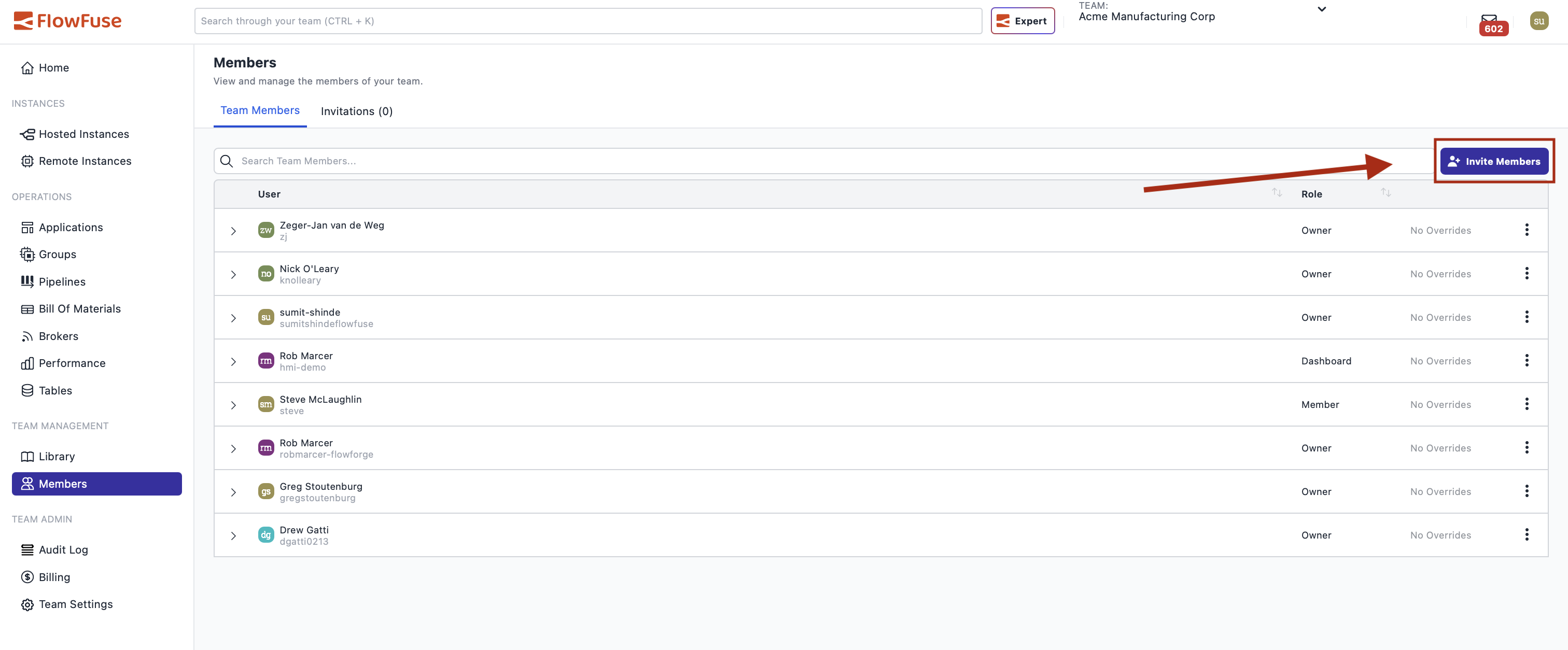
- Enter the user's username or email address
- Select the initial role (Owner, Member, Viewer, or Dashboard Only)
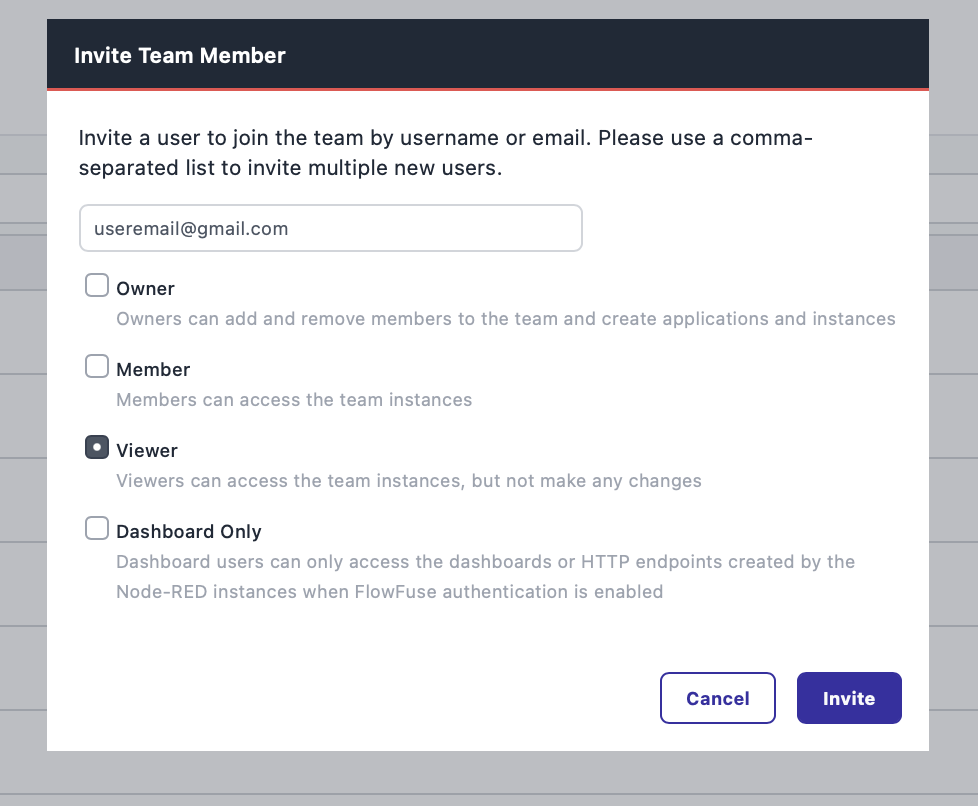
- Send the invitation
The invited user will have the assigned role once they accept the invitation.
Changing Existing Member Roles
To change a team member's role:
- Navigate to the Team Members page
- Locate the user whose role you want to change
- Click the three-dot icon next to their username
- Select Change Role
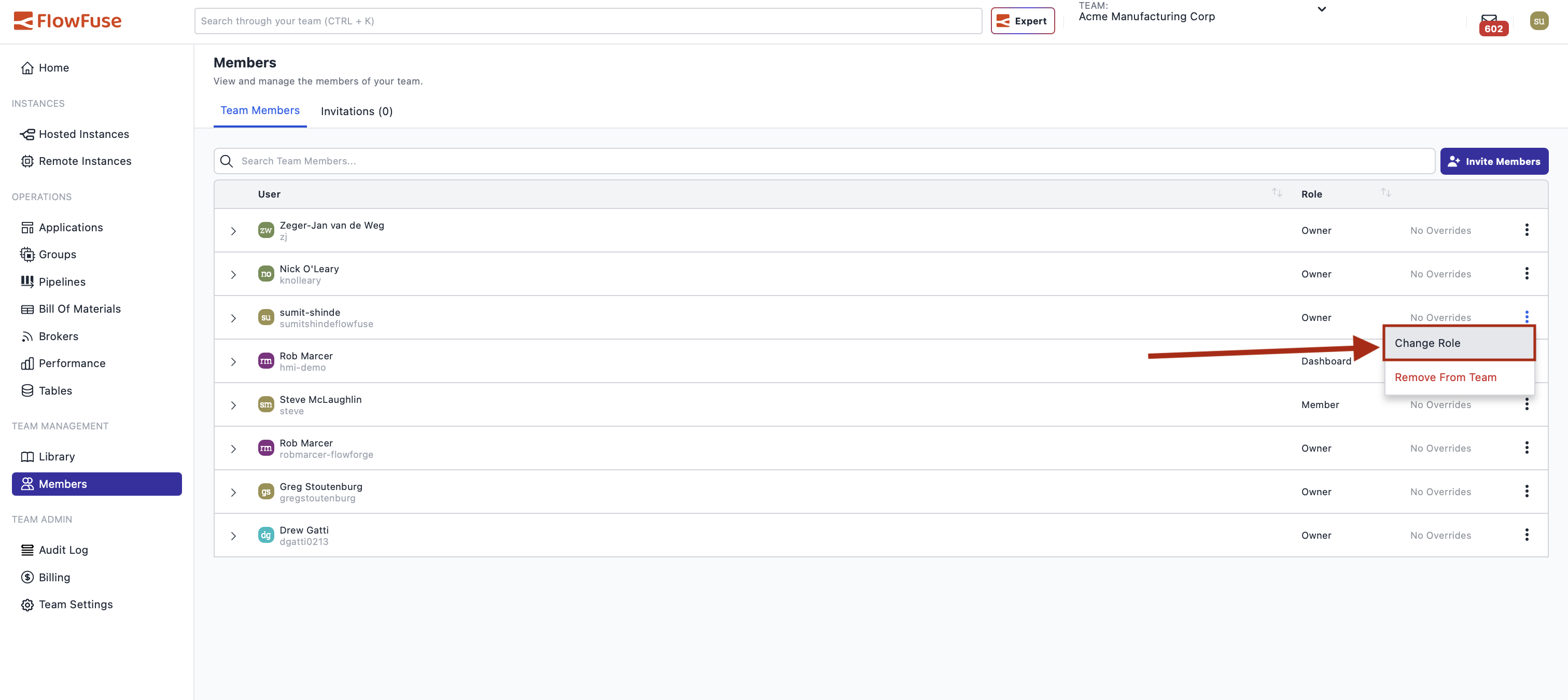
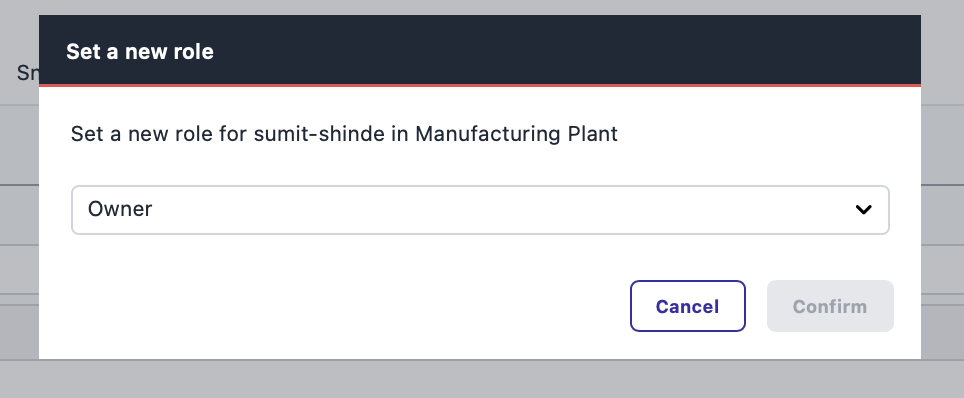
- Choose the new role from the popup (similar to the invitation process)
- Confirm the change
Note: An Owner can only change their own role if at least one other Owner exists on the team.
Application-Level RBAC
Application-Level RBAC enables you to control permissions at the individual application level within a team. This allows different team members to have different permission levels for different applications without creating multiple teams.
This is an Enterprise lisenced feature for Self Hosted Users and requires an Entprise Team on FlowFuse Cloud.
Overview
Team-level roles define default permissions across all resources.
Application-level roles override these defaults for specific applications.
When you assign an application-level role to a team member, it takes precedence over their team-level role only for that application. Their team-level role applies to all other applications.
Available Roles
Application-level roles follow the same structure:
- Owner – Full control over the application
- Member – Can develop and manage flows, create snapshots, modify environment variables
- Viewer – Read-only access
- Dashboard Only – Can only view dashboards and HTTP endpoints
Permission Hierarchy
- If a user has an application-level role, that determines their permissions for the application.
- If not, their team-level role applies.
- Team Owners always have full access to all applications.
Example:
A team-level Member is assigned Viewer permissions for one production application. They can only view flows in that application, but retain normal Member permissions for all others.
Configuring Application-Level Roles
Team Owners can configure application-level roles:
- Navigate to the application
- Open Application Settings → User Access
- Click the three-dot icon next to the user and select Edit Permission
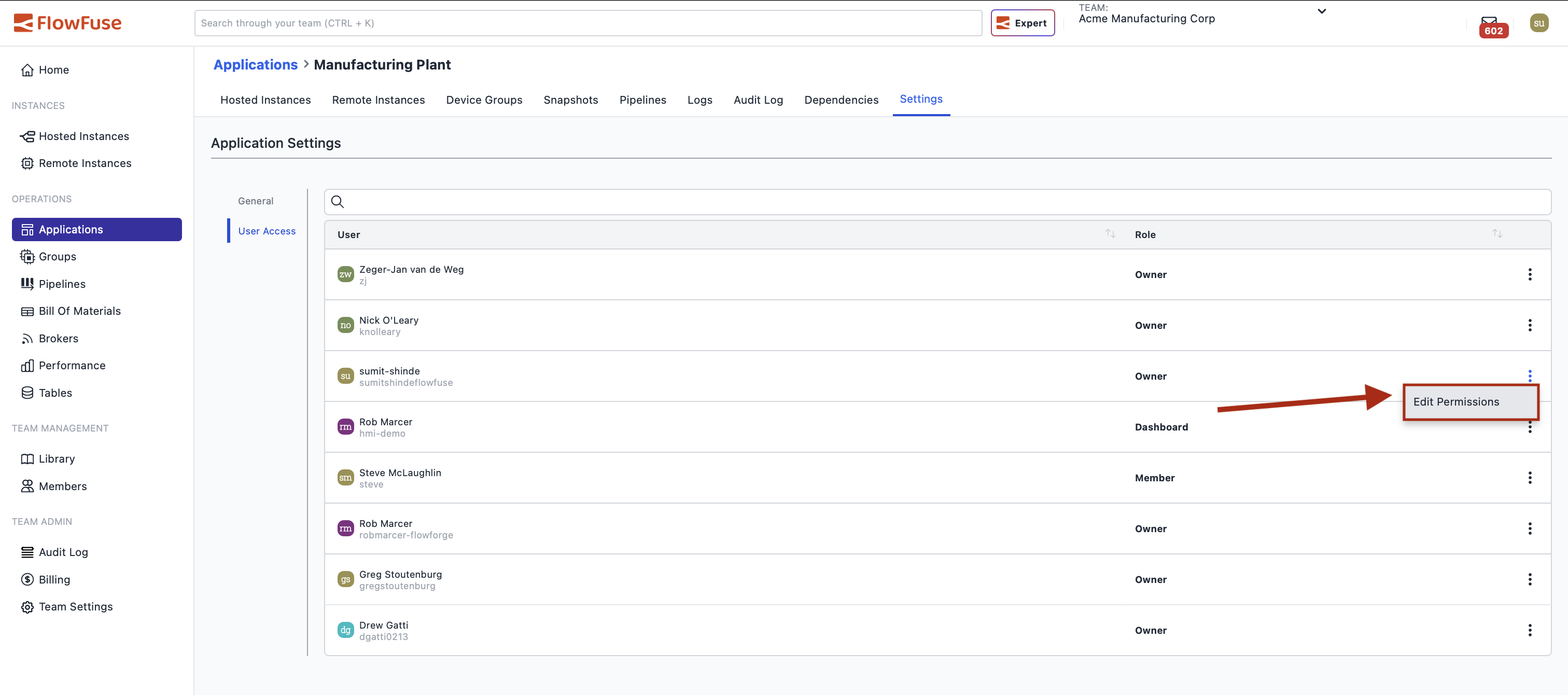
- In the popup, assign the desired application-level role
- Changes apply immediately
To remove an application-level assignment, simply clear the role. The user will fall back to their team-level role for that application.