- Documentation
- FlowFuse User Manuals
- FlowFuse API
- FlowFuse Self-Hosted
- Quick Start
- Upgrading FlowFuse
- Support
- Premium Support
- Debugging Node-RED issues
- Other
- admin
- cloud
- contribute
- device-agent
- hardware
- install
- migration
- user
- Getting Started
- Static asset service
- Bill of Materials
- FlowFuse Concepts
- Instance States
- Changing the Stack
- Custom Hostnames
- Custom Node Packages
- Dashboards
- DevOps Pipelines
- Environment Variables
- FlowFuse Expert
- FlowFuse File Nodes
- FlowFuse MQTT Nodes
- FlowFuse Persistent Context
- FlowFuse Project Nodes
- FlowFuse Tables
- Groups
- High Availability mode
- HTTP Access Tokens
- Instance Settings
- Logging
- Role-Based Access Control
- Shared Team Library
- Snapshots
- Team Broker
- Teams
- User Settings
AI in Node-RED
FlowFuse Expert brings AI assistance directly into the Node-RED editor itself. Unlike the Chat Interface, which is a conversational panel you open separately, FlowFuse Expert's in-editor AI works where you already are - inside node editors, on the canvas, and in the palette.
Note: FlowFuse Expert can also be installed as a plugin into Node-RED instances running outside of FlowFuse, using the
@flowfuse/nr-assistantpackage from the Node-RED Palette Manager. This requires a FlowFuse Cloud account but does not require a paid subscription for the current release.
To enable the latest features, ensure your instance is running the latest Stack. For FlowFuse Cloud instances, FlowFuse Expert (@flowfuse/nr-assistant) is automatically updated to the latest version.
Team owners can disable all AI features, including the in-editor AI, from the team settings page. When AI is disabled, the @flowfuse/nr-assistant plugin will not be loaded on new deployments. Running instances will need to be restarted for the change to take full effect.
Features
- Flow Autocomplete: Automated, intelligent suggestions for which node should be added next in your flow
- Inline Code Completions: Inline code completions for Function node, Tables Query node and FlowFuse Dashboard
ui-templatenode - Flow Explainer: Get detailed explanations of the selected nodes in your flow
- Function Node Creation: Create a new function node directly, driven by natural language
- Function Code Generation: Within the scope of an existing function node, ask the assistant to write code for you
- JSON Generation: In-editor JSON generation within the JSON editor for all typed inputs and JSON editors
- CSS and HTML Generation: In-editor CSS and HTML generation for FlowFuse Dashboard
ui-templatenodes
Flow Autocomplete
 Recording of the flow autocomplete in-action, with up/down keys used to toggle suggestions and tab to move to the next suggestion
FlowFuse Expert runs a trained, in-browser machine learning model that provides intelligent suggestions for which node should be added next in your flow.
You can accept the suggestion by clicking it or by pressing the Tab key. You can also toggle through suggestions by pressing the Up and Down keys.
Inline Code Completions
Mimicking the familiar code assistant in your IDE, FlowFuse Expert provides inline code completions for Function nodes, Tables Query nodes, and FlowFuse Dashboard ui-template nodes.
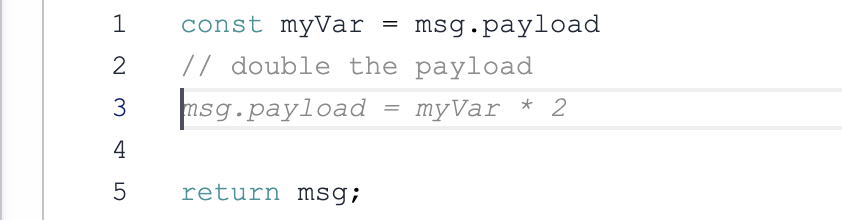 A simple example of inline code completions for a Function node
This feature accelerates the writing of custom code and queries by providing intelligent suggestions without having to leave the editor, lowering the barrier to entry for non-technical users.
Using comments is optional - the assistant will do its best to understand the context of the code and provide suggestions based on the surrounding code. However, writing comments does help to frame the request in a way that is more likely to produce accurate results.
Flow Explainer
FlowFuse Expert adds a button to the Assistant menu that will explain what the selected nodes do. To use this feature, select one or more nodes on the canvas and click the "Explain Flows" button in the Assistant menu.
Function Node Creation
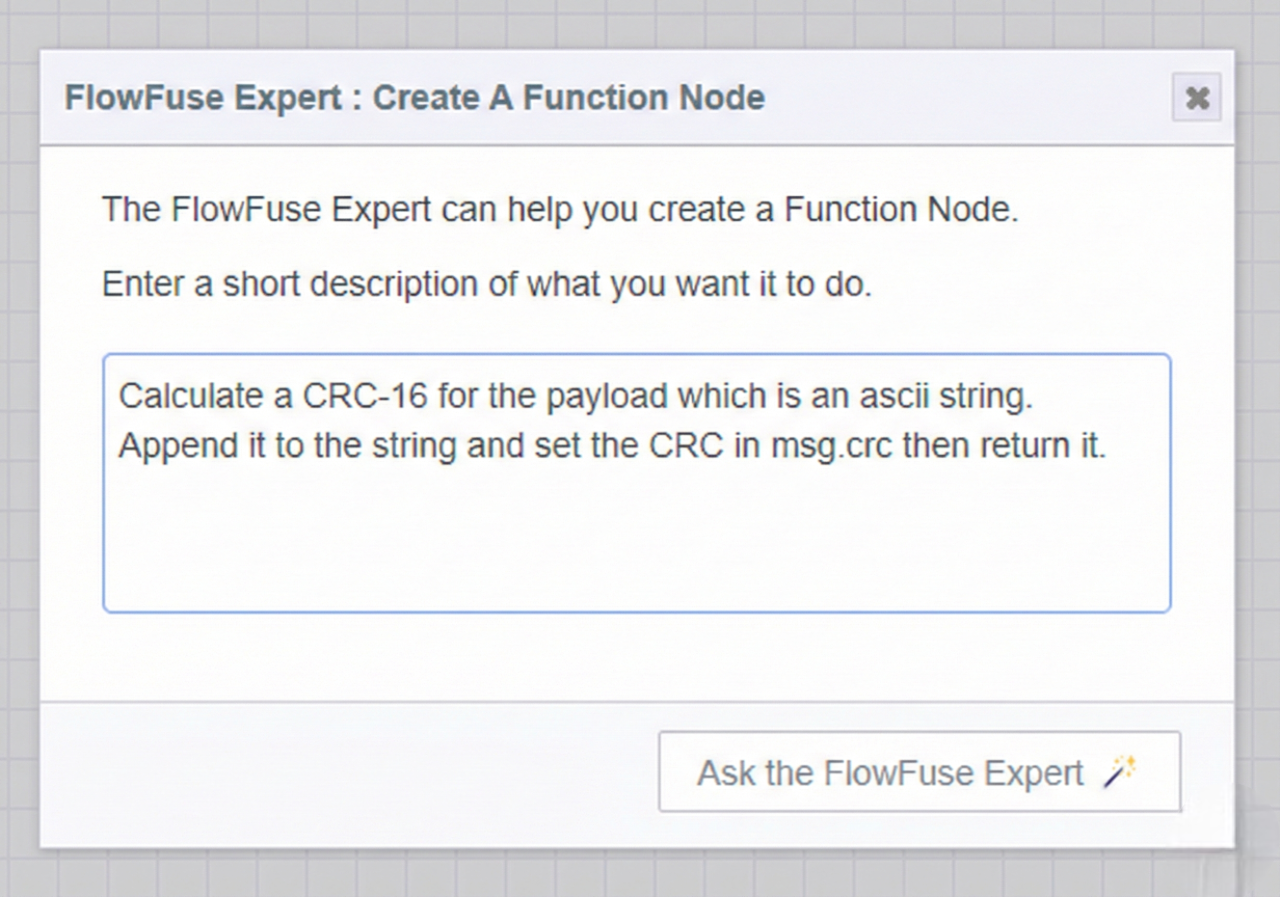 Screenshot showing the FlowFuse Expert dialog for creating a function node
Use natural language to request a new function node be added to your Node-RED flow. This is useful when you want to quickly add a function node without having to drag it from the palette and write the code yourself.
If your instance supports external modules, you can ask for a function node that uses them and they will be added to the function node setup automatically. If your function node requires multiple outputs, FlowFuse Expert will set the correct number of outputs accordingly.
Function Code Generation
FlowFuse Expert adds a code lens to the function node editor that allows you to generate code directly within the editor.
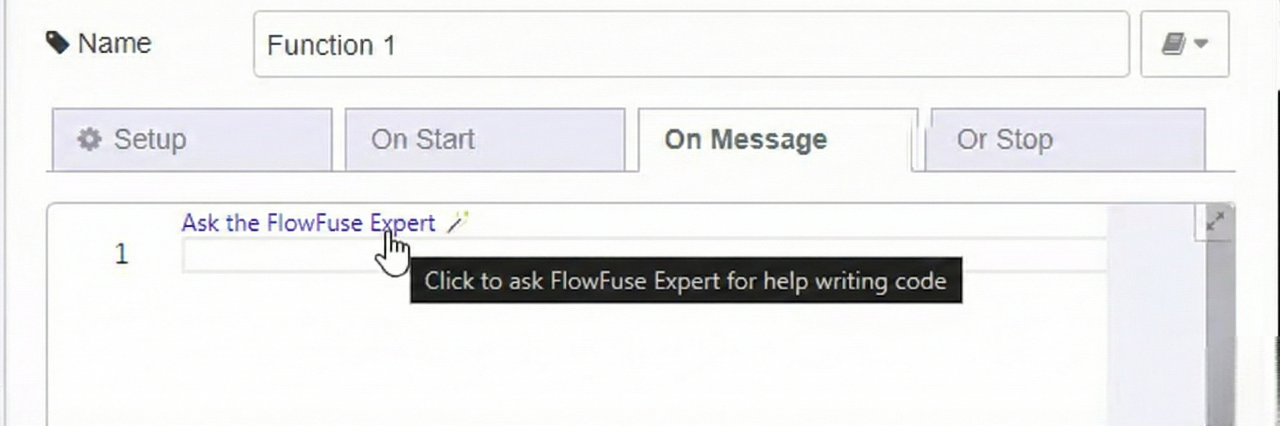
This is useful when you want to quickly add or rewrite code within an existing function node without generating a full new function node from scratch.
JSON Generation
FlowFuse Expert adds a code lens to the JSON editor that allows you to generate JSON directly within the Monaco editor.
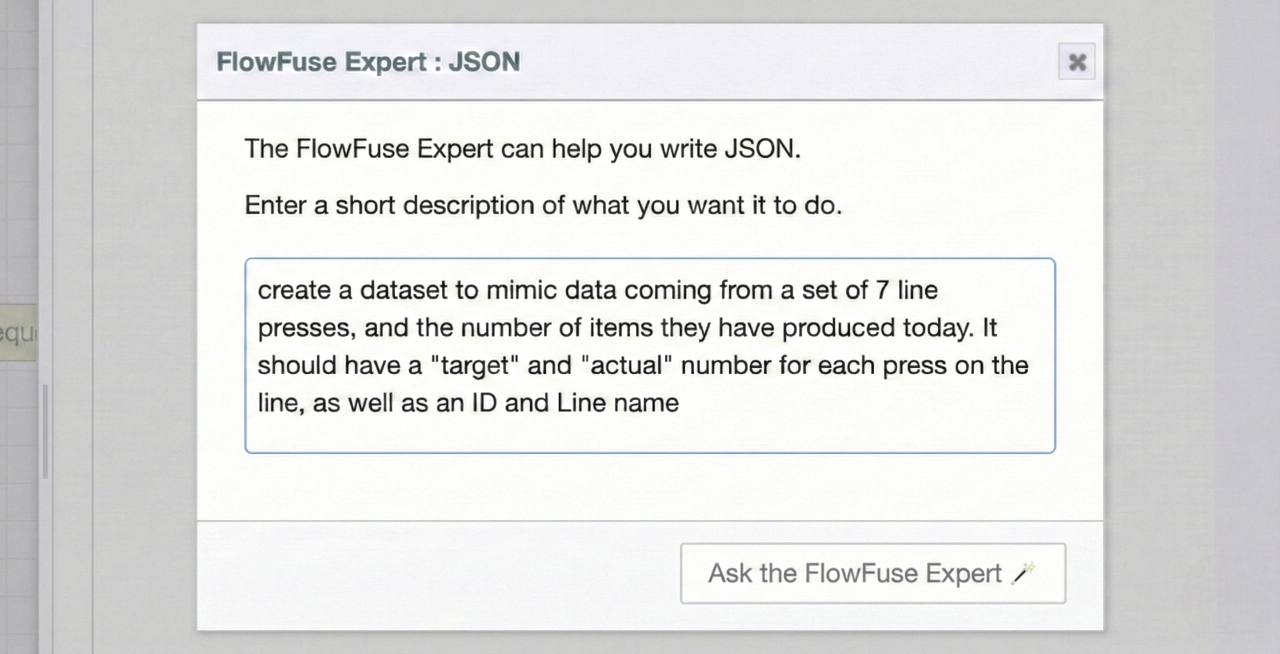 Screenshot showing a FlowFuse Expert prompt for JSON generation
This is useful when you want to quickly generate JSON for a prototype or to test a piece of functionality in your flows.
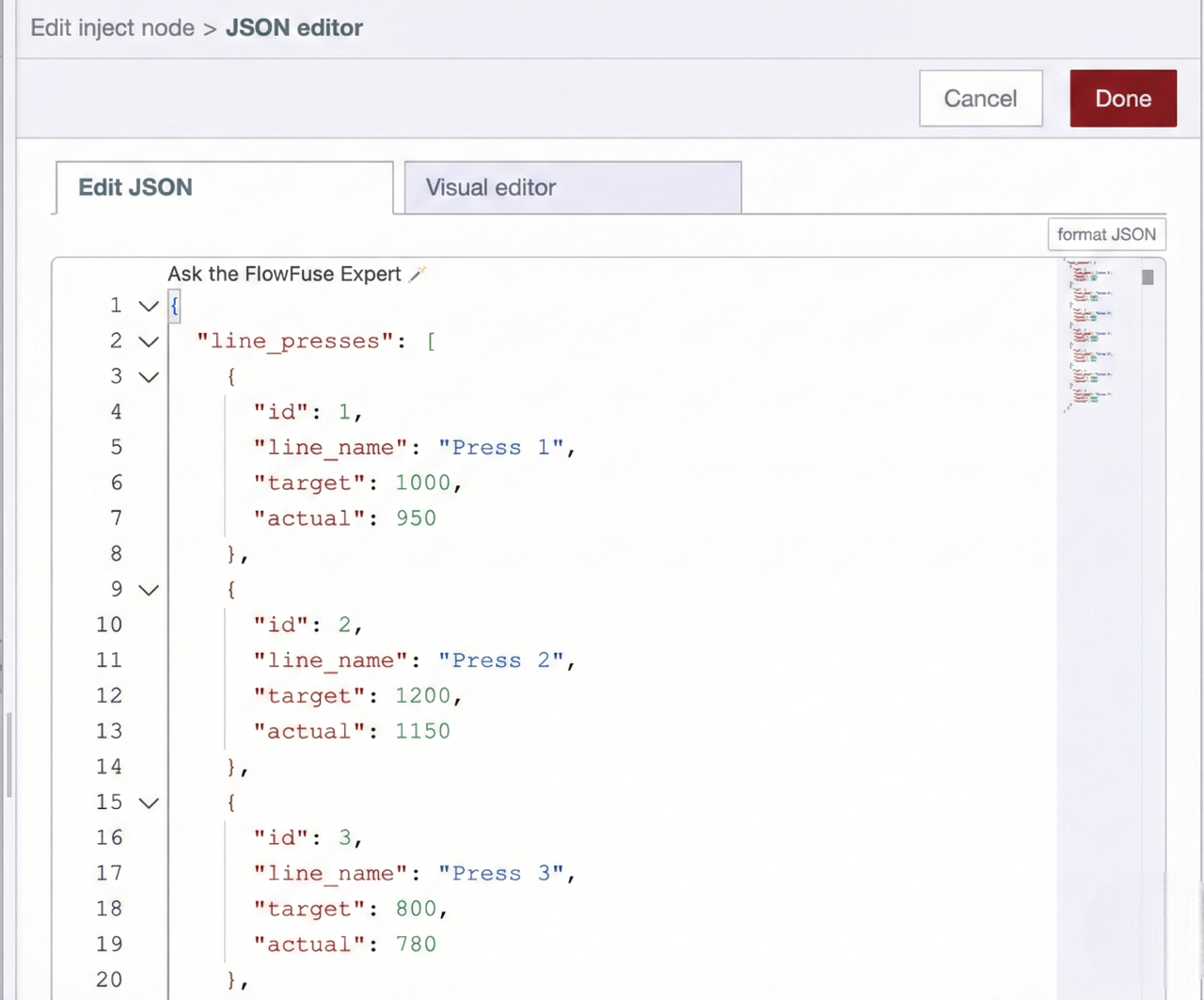 Screenshot showing the result of the above FlowFuse Expert prompt
CSS and HTML Generation for FlowFuse Dashboard
FlowFuse Expert adds a code lens to the FlowFuse Dashboard ui-template node that allows you to generate CSS and HTML directly within the code editor. It is aware of the context of the node and will generate suitable CSS and HTML components for Vuetify and the FlowFuse Dashboard.
Installing in External Node-RED Instances
Note: FlowFuse Cloud instances have FlowFuse Expert automatically installed. Manual installation is only needed for Node-RED instances running outside of FlowFuse. Only the in-editor AI features can be installed externally - the Chat Interface is exclusive to FlowFuse.
To install the plugin in your own Node-RED instance:
- Use the Node-RED Palette Manager to install the package
@flowfuse/nr-assistant - Restart Node-RED
- Click the FlowFuse Expert icon in the header
- Follow the prompts to connect to your FlowFuse Cloud account
- Once connected, you will be able to use all FlowFuse Expert features
FlowFuse Expert for self-hosted customers
If you are self-hosting FlowFuse with an Enterprise license, get in touch with support who will be able to help get you set up to use FlowFuse Expert locally.