
Live OEE for one line
I run one line and I want a dashboard showing live availability, performance and quality for it, with every stop carrying a reason. Simulate the machine signals so it runs before I connect anything.
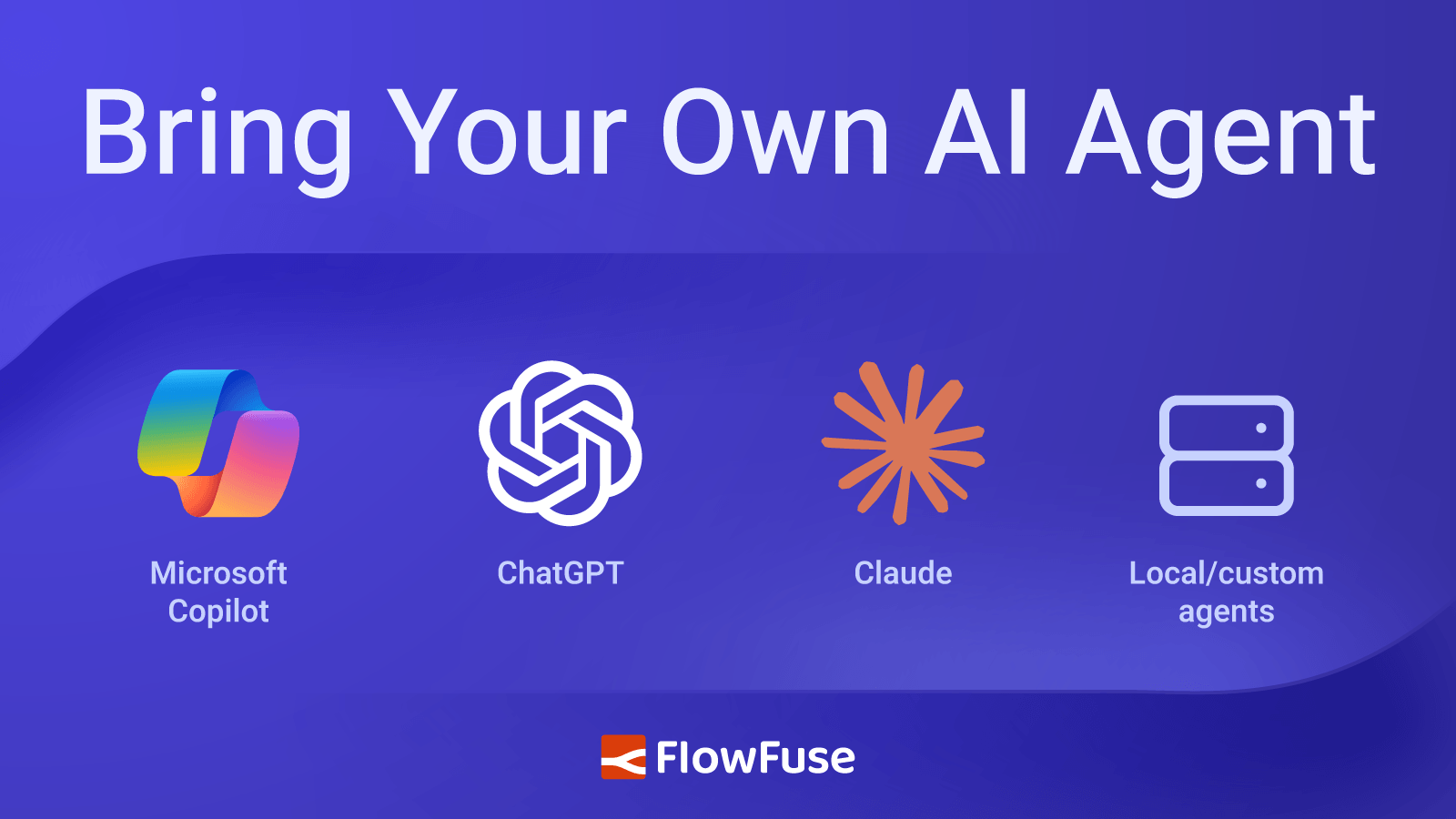
FlowFuse 3.0 acts as an MCP server, so the AI agent your company already approved can operate FlowFuse and build flows in your Node-RED instances. You add one address, sign in, and choose which teams the agent reaches and whether it gets editing rights. It manages the FlowFuse platform and builds flows on a Node-RED canvas you are watching. It cannot delete anything, so you remain in control of deploying your flows. For teams under approved-AI-only policy, this is the difference between no AI on the platform and all of it.
What used to happen is that an engineer would open their AI agent of choice in another tab or application, describe what they would need to happen in Node-RED, they get the JSON back, then copy, paste, and import that into the editor. Doing so, on repeat, until it is right. The AI is already doing the work, just not in an efficient way that requires you to be a part of it.
That's not how an industrial AI agent should work. It should be able to work directly with your industrial systems, rather than generating something for you to copy and paste.
That's what our first class integrated industrial AI agent, FlowFuse Expert, was built to do. It works within the FlowFuse platform, where it can understand your applications, instances, flows, and operational data, and then build and edit the operational flows directly in Node-RED instances.
| Without FlowFuse Expert | With FlowFuse Expert | |
|---|---|---|
| Creating and editing Node-RED flows | Wiring flows by hand or asking an external AI for JSON to be copy and pasted over, including errors. | The industrial AI agent creates or edits the flows right in front of you. |
| Setting up an industrial application | Manually setting up FlowFuse applications, instances, and connecting them together through submodules or pipelines so it's ready for a production setup, plus configuring the flows. | The industrial AI agent helps you set it up from start to finish. You can even plan with the AI agent so you are sure it aligns with your expectations. The AI will help you ensure it will be ready for a production setup. |
| Asking about your industrial fleet | Manually walking through the platform UI to figure out what runs how. | The industrial AI agent scans your FlowFuse instance and understands what there is and its status, then reports it to you in natural language. |
| Asking about your operational data | Manually configuring the data aggregation, modeling, and visualisation into dashboards, then monitoring those. | The industrial AI agent configures the data aggregation, modeling, and visualisation for you into a usable dashboard. And it can also create custom MCP servers which allow you to ask about your operational data in natural language. |
Ask why they don't use the FlowFuse Expert built into the platform, and the answer usually isn't about quality; it's about policy. Plenty of the companies we work with run an approved-AI-only rule. So for those teams the only option was to use "their AI, through the clipboard" with the alternative being no AI-support at all.
FlowFuse now acts as an MCP server. Your own AI agent connects to it as a client and because the AI agent is yours, so is the choice of model it uses.
That means the AI agent your company already approved can work the platform directly: look at your teams and applications, check what your instances are doing, read runtime logs, query your FlowFuse Tables data, create applications and instances, and build and edit the flows inside your instances.
Connecting an AI agent to FlowFuse takes three steps depending on the agent you would like to use.
You add one address in your AI agent's connector settings. On FlowFuse Cloud that address is https://app.flowfuse.com/mcp. You are then triggered to sign in to FlowFuse, after which you pick which teams the AI agent may act on, and whether it gets editing rights or read access only.
If you want to jump ahead and get connected now, skip to the steps at the end.
"We gave an AI agent access to production" is usually a sentence that ends conversations, so let's clarify.
You choose the teams. If you have a production team and a development team, granting only development means an instruction can only hit what you manage in that team.
You choose read access or editing rights. Read access is useful on its own: what's running, what's failing, what the logs say, what's in your tables, and so on. An industrial AI agent with read access has no ability to change anything. When permitting editing rights, the agent can set up applications, instances, and edit the flows inside of them.
And there are things nobody can grant. An industrial AI agent working through FlowFuse can't delete an instance, an application, a snapshot, or a team. That is because those tools don't exist. Lastly, deploying a Node-RED flow is, for now, still done by you manually as well.
Two things run underneath all of it. The role-based access control that already governs your teams affects the industrial agent too, so it can't reach past what your own account reaches. And every action it takes lands in the audit log attributed to you and marked via MCP, so "what the AI did last Tuesday" is a question with an answer.
Most agents will prompt you and ask before they act. This logic belongs to the agent itself rather than to FlowFuse, so it looks different in each one, but in practice you see the tool call before it runs, so you retain visibility and control.
We're working towards AI that can act as required in production setups and in setups where experimentation is fine, and those are different settings for different scenarios. But what is described above is the boundary as it ships right now.
Node-RED has always been visual. You look at a flow and you can tell what it does.
We didn't want to trade away control for AI, so when your agent builds a flow, it builds it in a live editor session, on the canvas in front of you. You watch the nodes appear and get wired up. If it's going somewhere you don't like, you can see that while it's happening rather than afterwards. Up for review before you enable the deployment.
Asking questions about your platform needs no active browser session open at all. It's flow work specifically that runs in an editor you're looking at.
Most people reading this can't add a connector on their company sanctioned AI agent. On ChatGPT, a workspace administrator switches on custom connectors. On Claude Team and Enterprise, an owner adds the connector for the organisation and then people connect individually. On Microsoft Copilot, a tenant administrator approves it.
It's one address. Everyone still signs in with their own FlowFuse account, and still chooses their own scopes, so nobody inherits anyone else's access. Nothing about it makes FlowFuse a new data processor for your organisation.
We're also working on removing the question at all.
If your team is on FlowFuse Cloud, you can get connected already. Our Industrial AI page has the three steps for whichever agent you use similar as noted above.
If your team is on FlowFuse self-hosted, make sure to be on at least version FlowFuse 3.0 or higher. On self-hosted, platform messaging runs over the MQTT broker, so the Team Broker needs to be available. Whether anything is needed from you depends on how your self-hosted platform was installed. Our documentation has further details on what to do for custom situations.
For now, begin with any of the following prompts when authenticated with the platform:
Starter prompts
Live OEE for one line
I run one line and I want a dashboard showing live availability, performance and quality for it, with every stop carrying a reason. Simulate the machine signals so it runs before I connect anything.
Andon calls with the evidence attached
When an operator flags a problem at a machine I want a record created with that machine's recent signals attached, an owner and a status on it, and a dashboard my supervisor can work through. Simulate the line and a handful of open problems.
A mid-shift board of orders and skills
I want a dashboard my supervisors can use mid-shift: what has to run on each station and who on shift is qualified to run it. Simulate the orders, the roster and the skills.
Call for help, routed and escalated
When a machine calls for help I want it routed to the person who can fix it, escalated if nobody acknowledges it, and the time from call to acknowledgement recorded. Simulate the line events.
A quality check at the machine
I want a check at the machine that measures each part against the tolerance for the product currently running, tells the operator on the dashboard the moment one is out of tolerance, and records every measurement rather than only the failures. Simulate the measurements.
One record per serial, both directions
Each assembled unit gets a serial number at the first station. I want one record per serial listing the stations it passed through, with the torque, temperature and operator captured at each, so I can look up one serial, or list every serial that passed a given station in a shift. Simulate the production steps.
Early warning on machine health
I want the few signals that tell me a machine is going bad, cycle time drift, current, temperature and fault counts, judged against what is normal for that machine, and a dashboard that flags it plus a message to maintenance before it stops. Simulate the machine signals.
Every protocol, one topic structure
I want every machine, whatever protocol it speaks, to publish to one MQTT topic structure of site, area, line and asset, with the same payload fields on every message: value, unit, timestamp and source. Simulate a few machines on different protocols.
Three steps, and they depend on which agent you would like to use.
01Copy the FlowFuse connector URL
You will paste this into your agent in the next step.
https://app.flowfuse.com/mcp02Copilot Studio, Tools, Add a tool
Choose Model Context Protocol and paste the URL. Describe what it is for: the orchestrator reads that to decide when to call it.
03Select teams and permissions
Walk through connecting your agent with our team, on your instances, and see what it can and cannot reach.
Product Manager
Product manager with a technical product design background, continuing to be meticulous about user-centric design, now shaping how industrial IT/OT teams are made more effective through AI at FlowFuse.
On the page that opens, check the box next to flowfuse.com to see more of our articles in your Google Search results.