node-red-contrib-cron-plus
A flexible scheduler (cron, solar events, fixed dates) node for Node-RED with full dynamic control and time zone support
node-red-contrib-cron-plus
A flexible timer/scheduler (cron, solar events, lunar events, simple dates) node for Node-RED with full dynamic control and time zone support
QUICK DEMO...
FEATURES
- Schedule by CRON, date sequences, solar events and lunar events (with offset)
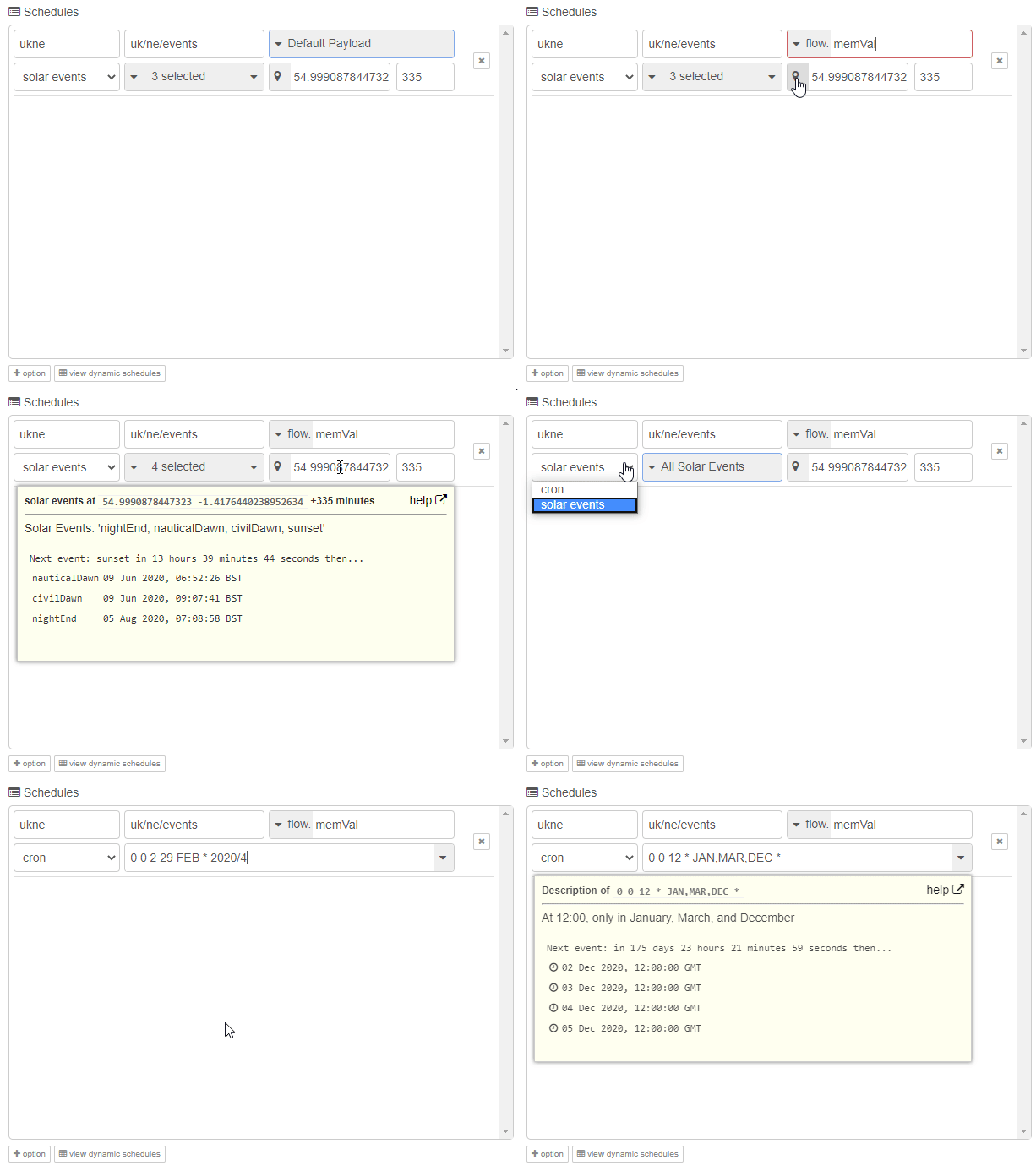
- A human readable description of your expression is provided as you type.

- An Easy Expression Builder to aid cron novices

- Multiple schedules can be entered by the node editor UI or dynamically at runtime
- Send a default payload or any of the following: timestamp, string, number, boolean, flow variable, global variable, JSON, JSONata, Buffer or Env variable as the output.
- Example CRON expressions provided in the dropdown to get you started
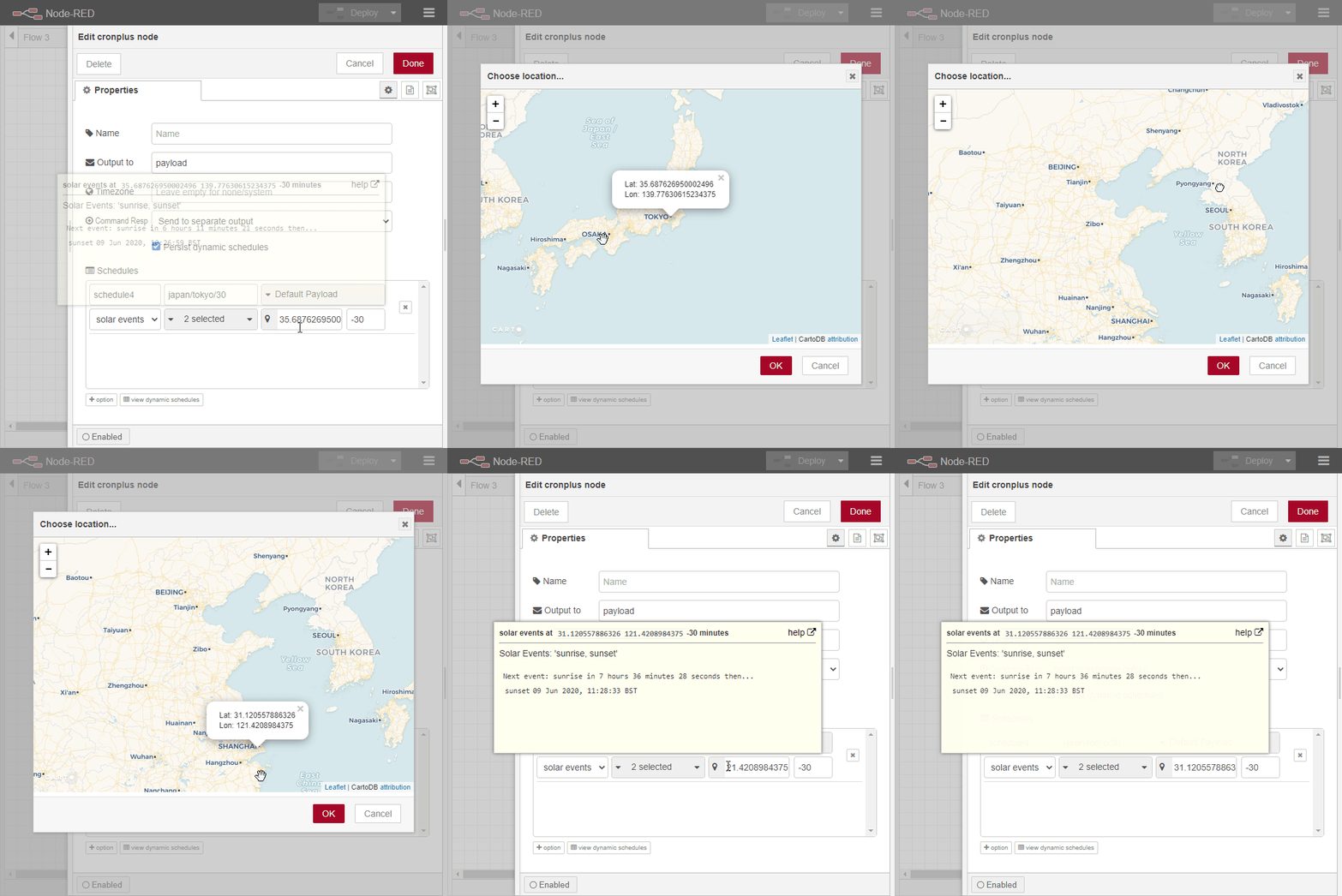
- Map popup to help you enter coordinates for solar events
- Location coordinates can be per schedule, per cron node or set by an environment variable (as of V2.0.0)
- NOTE: Map is 100% CDN dynamic and requires and internet connection. If there is no internet, the popup will provide information to help you get location coordinates from another source
- Option to separate command responses from output 1 to separate 2nd output
- Fan out option to separate each static schedule to its own output (dynamic and command responses are sent on last 2 output pins) (as of V1.4.0)
- Settable output variable (normally
msg.payloadbut it is up to you) - Inject-like button to fire the node (available when only one schedule is added)
- View dynamically created schedules in the node editor UI (updated in V2.0.0)
- Additional info about the triggered schedule is always sent in the output message in
msg.cronplus- NOTE: if the payload is to "Default Payload", then the content of
msg.cronplusis moved tomsg.payload
- NOTE: if the payload is to "Default Payload", then the content of
- Node status updates to show the next event
- NOTE: the status indicator will be shown as a "ring" for dynamic schedules or shown as a "dot" for static schedules
- Full flexibility & dynamic control.
- Ability to control via simple topic commands. Examples include...
- remove, remove-all, remove-all-dynamic, remove-all-static, remove-active, remove-active-dynamic, remove-active-static, remove-inactive, remove-inactive-dynamic, remove-inactive-static
- export, export-all, export-all-dynamic, export-all-static, export-active, export-active-dynamic, export-active-static, export-inactive, export-inactive-dynamic, export-inactive-static
- list, list-all, list-all-dynamic, list-all-static, list-active, list-active-dynamic, list-active-static, list-inactive, list-inactive-dynamic, list-inactive-static
- status, status-all, status-all-dynamic, status-all-static, status-active, status-active-dynamic, status-active-static, status-inactive, status-inactive-dynamic, status-inactive-static
- status is an alias for list
- stop, stop-all, stop-all-dynamic, stop-all-static
- start, start-all, start-all-dynamic, start-all-static
- pause, pause-all, pause-all-dynamic, pause-all-static
- next (as of v2.0.0)
- Ability to add, remove, list, export, stop, start, pause schedules by a command payload input. Examples include...
- add - add one or more dynamic schedules
- describe - describe solar events or cron expression (without the need to add a schedule)
- useful for creating a dynamic dashboard like this
- Ability to control via simple topic commands. Examples include...
- Persist schedules and state
- In local file system (default)
- In memory or persistent context (as of V2.0.0)
- Persist state of schedules (as of V2.0.0) (i.e. if a schedule is paused, it will remain paused after a restart)
- Recognises system clock changes and recalculates schedules
- change detection can now be customised by adding an entry in
settings.jsor an environment variable namedCRONPLUS_MAX_CLOCK_DIFF(as of V2.0.0)
- change detection can now be customised by adding an entry in
- Demo flows demonstrating many of the capabilities. Import via node-red menu > import > examples.
- Optional time zone setting supporting UTC and Region/Area (e.g. Europe/London)
- Daylight Saving Time transitions are handled following the same conventions as Debian cron (see below)
- A companion when gate node to gate messages on plain-English temporal conditions like "on saturdays", "is night" or "when the moon is visible" (see below)
-
Solar schedules aren't limited to the named presets (sunrise, civil dusk, etc.). For cases the presets don't cover, solarType: "altitudeRising"/"altitudeSetting" with a solarAltitude (degrees, -90 to 90) fires on any custom sun altitude instead. See the node's built-in help for the full list of presets and the custom-altitude details.
Schedules can fire on moon events at a location, alongside the existing solar events:
| Event ID | Event | Information |
|---|---|---|
rise |
moon rise | the moon rises above the horizon |
set |
moon set | the moon sets below the horizon |
A lunar schedule takes the same shape as a solar one, using expressionType: "lunar" with lunarType ("all" or "selected") and lunarEvents (a CSV or array of the event IDs above), plus the usual location and optional offset (minutes). For example, adding one dynamically:
{
    "command": "add",
    "name": "moonwatch",
    "topic": "moonwatch",
    "expressionType": "lunar",
    "lunarType": "selected",
    "lunarEvents": "rise,set",
    "location": "54.9992500,-1.4170300"
}
[!TIP] At high latitudes the moon can stay above or below the horizon for days at a time. During such periods
rise/setevents simply do not occur and the schedule waits for the next real occurrence.
When gate node
The when gate node (cronplus-when-gate) receives any message and routes it to output 1 (allowed) or output 2 (blocked) based on a free-text temporal condition. It is typically wired after a cronplus node to gate schedule events on conditions cron syntax cannot express - but it gates any message.
Type the condition in plain English; a live "understanding" line below the field shows exactly how it was interpreted (or suggests examples when it wasn't), and a "details & upcoming matches" popout breaks the condition down (days/dates/months/years/times per alternative) and previews the next periods when messages would be allowed. Parsing is pure logic - no AI involved. Examples:
on saturday only,weekdays,mon-wed,not on tuesdayfirst monday of the month,3rd tuesday of the month,last friday of the month,last day of the month,last day of the week(weeks start Monday; the understanding line shows which day it resolved to)in december,june to august,on the 1st of the month,christmas day,after march/before march(excludes march itself either way)january 2027,2027 to 2029,first monday of the year,2nd tuesday of 2028,first monday of january,after 2027/before 2027(unbounded, unlike months)when day is odd,on even months,on even yearschristmas eve,day before christmas,4 days after christmas,1 month before christmas,within 2 days of christmas- other fixed dates (same everywhere, no moveable feasts or country-varying rules):
valentines day,groundhog day,st patricks day,april fools day,earth day,may day,boxing day(each also works witheve,day before, etc.) between 9am and 5pm,before noon,between 10pm and 6am(overnight),2130h(military time - the trailinghis required, a bare 4-digit number is already a valid year)morning(00:00-12:00),afternoon(12:00-18:00),evening(18:00-24:00) - fixed clock hours, not solar; the understanding line points to the sun-relative equivalent (dawn/sunrise,afternoon sun/golden hour,dusk/twilight)between 15 minutes and 30 minutes past the hour,quarter past,half past,ten past,5 to(every hour;quarter past fiveis the clock time 05:15)on the hour,every hour,hourly,every half hour,every quarter hour,every 5 minutes,every 2 hours- a repeating step counted from local midnight, matching for one minute each time (every 45 minutes= 00:00, 00:45, 01:30 ...). This is a time window, not a rate limit: it allows any message that arrives during a matching minuteis night,after dark,golden hour,sun rising,during daylightafter sunset,before sunrise,2 hours after sunset,within 30 minutes of sunrise,between sunset and sunrisewhen the moon is visible,full moon,blue moon(second full moon of a calendar month),seasonal blue moon(third full moon in a season of four),moon more than 50% illuminated,moon is 90% illuminated(bare percentages mean "at least")sun is between 10 and 12 degrees,sun above 30 degrees,sun is high/sun is low,moon is high/moon is lowsun azimuth is between 134 and 138 degrees,moon azimuth between 60 and 90(compass bearing from North, 0-360; wraps through north, e.g.sun azimuth between 350 and 10)- combining altitude and azimuth:
sun azimuth is between 134 and 138 and sun altitude is between 0.9 and 2.2(Newgrange's midwinter sunrise alignment) -sunmust be named on both clauses, "...and its altitude..." has no sun/moon context of its own >and<work as symbols for "above"/"below"/"more than"/"less than", e.g.sun > 30 degrees,moon < 50% illuminated,> 4pm(same asafter 4pm),at least 4pm- combined:
on weekdays and during daylight,on weekends or after sunset,weekends or evenings except tuesday - brackets group mixed and/or:
(last day of the month or wednesday) and after 10pm- without bracketsandbinds tighter thanor, and the understanding line always shows the grouping it settled on
The evaluated moment is msg.ts if present, else the cronplus trigger timestamp (msg.cronplus.triggerTimestamp, also found in msg.payload when the schedule payload is "Default"), else the message arrival time. Sun/moon conditions need a location: msg.location, the cronplus schedule location (msg.cronplus.config.location), or the location configured on the when gate node (with the same map picker as the cronplus node). Day/time clauses respect the node's optional timezone setting.
The condition itself is a typed input: a fixed string (default), a message property (per-message conditions, e.g. msg.condition), or an environment variable. The node status always reflects now - the current decision and when it next changes, e.g. allow until Sun 16:00 / deny until 18:45 (plain allow/deny when no change is upcoming) - shown from the moment of deploy and self-updating at each flip, independent of message traffic or message timestamps.
Whichever output the message takes, msg.whenGate is added describing the decision (pass, condition, description, ts and per-clause reasons). A sun/moon condition with no findable location raises a catchable error instead of guessing.
Daylight Saving Time (DST) handling
When a schedule runs in a time zone that observes DST (either the node's time zone setting or the system time zone), cron-plus follows the same conventions as Debian cron:
- A schedule is a wildcard job when its minute or hour field starts with
*(e.g.0,15,30,45 * * * * * *"every 15 seconds", or0 * 1 * * *"every minute during the 1am hour"). Wildcard jobs maintain their real-time interval across a DST transition:- when clocks go back, they also run during the repeated hour
- when clocks go forward, they continue at the next real-time slot
- A schedule is a fixed-time job when both its minute and hour fields are specific (e.g.
0 30 1 * * *"01:30 every day"). Fixed-time jobs:- run only once when clocks go back and their scheduled time occurs twice
- run as soon as possible after the transition when clocks go forward and their scheduled time is skipped
[!TIP] schedules using the
UTCtime zone (or any time zone without DST) are unaffected by DST transitions.
Install
-
Easiest...
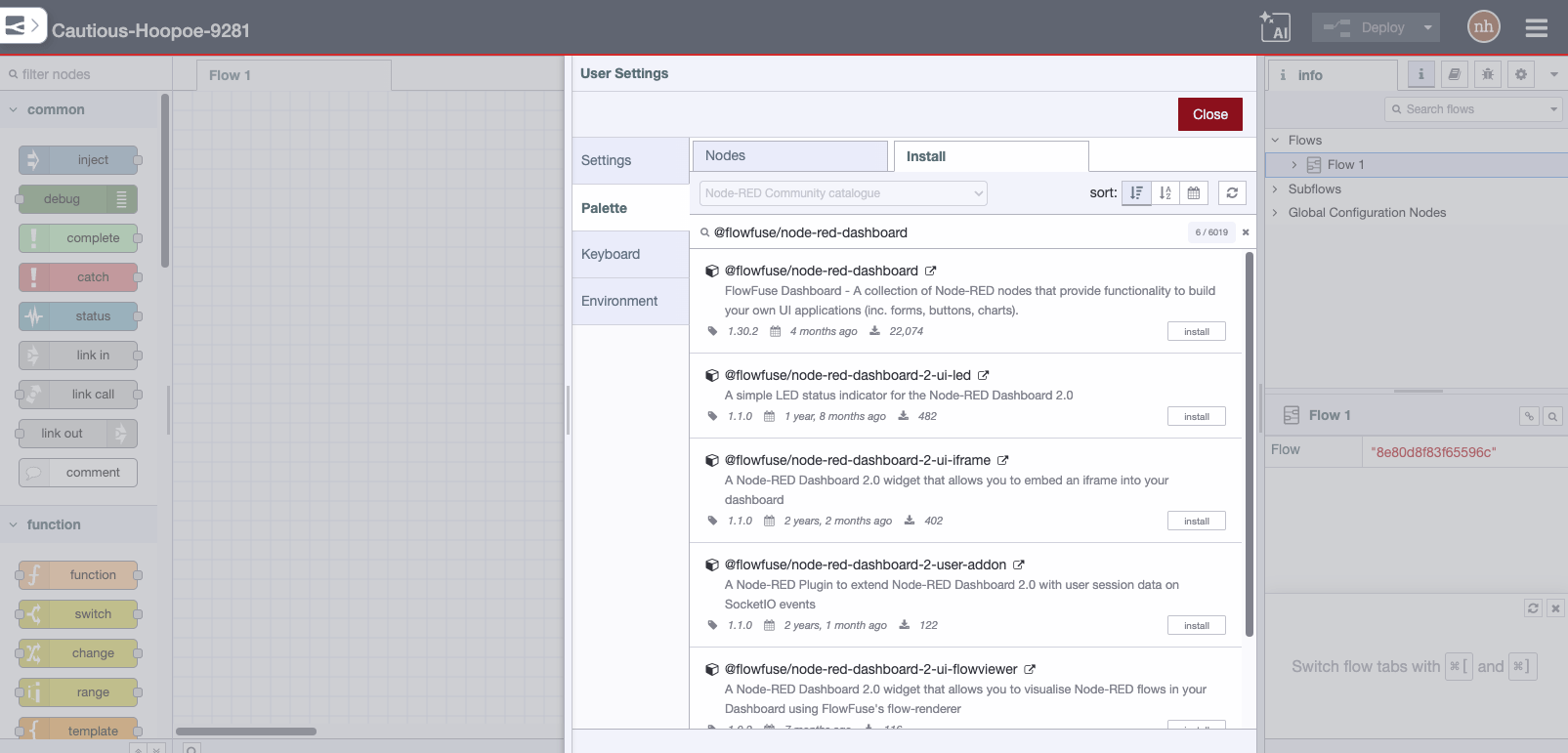
Use the Manage Palette > Install option from the menu inside node-red
-
Harder...
Alternatively in your Node-RED user directory, typically ~/.node-red, run Run the following command in the root directory of your Node-RED install. (Usually this is
~/.node-redor%userprofile%\.node-red).Install from NPM
npm install node-red-contrib-cron-plusInstall from GIT
npm install Steve-Mcl/node-red-contrib-cron-plusAlternatively, install from a folder
npm install c:/tempfolder/node-red-contrib-cron-plusOr simply copy the folder
node-red-contrib-cron-plusinto a folder namednodesinside your node-red folder thencdintonodes/node-red-contrib-cron-plusand executenpm install
Troubleshooting
"Invalid store name specified 'xxx' - state will not be persisted for this node"
The node's Save State setting names a node context store that the node-red runtime does not recognise. Context stores are defined in the contextStorage section of your node-red settings file (typically ~/.node-red/settings.js) and the store selected in the node may have been removed or renamed there.
To fix, either select a different Save State option in the node's settings, or define the store in your settings file and restart node-red, e.g.:
contextStorage: {
    default: {
        module: "localfilesystem"
    },
},
[!NOTE] on a default node-red installation (no
contextStorageconfigured), the only context store is the built-inmemorystore. State saved there survives re-deploys but not node-red restarts - choose the File option (or configure alocalfilesystemcontext store) if state must survive a restart.
Context storage is pluggable: besides the built-in memory and localfilesystem modules, installable plugins provide stores backed by other technologies (e.g. Redis, SQLite, PostgreSQL, MySQL/MariaDB), and some platforms (e.g. FlowFuse) provide a persistent context store out of the box. Any store configured in contextStorage (or provided by your platform) can be selected in the node's Save State setting. See the node-red context documentation for details.
Acknowledgements
- Inspired by node-red-contrib-cron
- Cron expression builder adapted for cron-plus from https://github.com/juliacscai/jquery-cron-quartz (not on NPM)
- Custom solar altitude angle scheduling contributed by @evilbunny2008
- Big thanks for continued support by @jaclark for the excellent cronosjs
Dependencies
Development
- Fork the repo
- Clone your fork locally and
cdinto the project folder - Run
npm installto install dependencies - Run
npm run lintto check code style - Run
npm run lint:fixto fix code style issues - Run
npm testto run tests