Agent Initiated Deploy
When an AI agent edits a flow, whether it's FlowFuse's own Expert or a third-party tool connected over MCP, the change used to sit staged until you clicked Deploy yourself. You can now let agents deploy their own changes directly, so the flow goes live the moment the agent finishes, with no manual step in between.
It's off by default. Turn it on for a team under Team Settings > Danger > AI Flow Deploy, and every agent working on that team's instances, FlowFuse Expert or your own Agent, can deploy what it changes. Turn it off and agents go back to staging changes for you to review and deploy yourself, and that takes effect immediately, no instance restart needed.
This also makes an agent far more useful for debugging. Ask it to add a debug node, make the change you're chasing, and deploy, and it can read the debug output straight back and tell you what happened, all in one pass. No stopping mid-conversation for you to click Deploy before it can even see whether the fix worked.
If an agent tries to deploy while the setting is off, it won't just give up silently. It tells you the change is saved but not live, and offers to take you straight to the setting so you can turn it on.
To get started:
- Go to Team Settings > Danger.
- Turn on AI Flow Deploy. (Requires AI Features to be enabled for the team.)
- Ask your agent to make a change and deploy it. No need to click Deploy yourself.
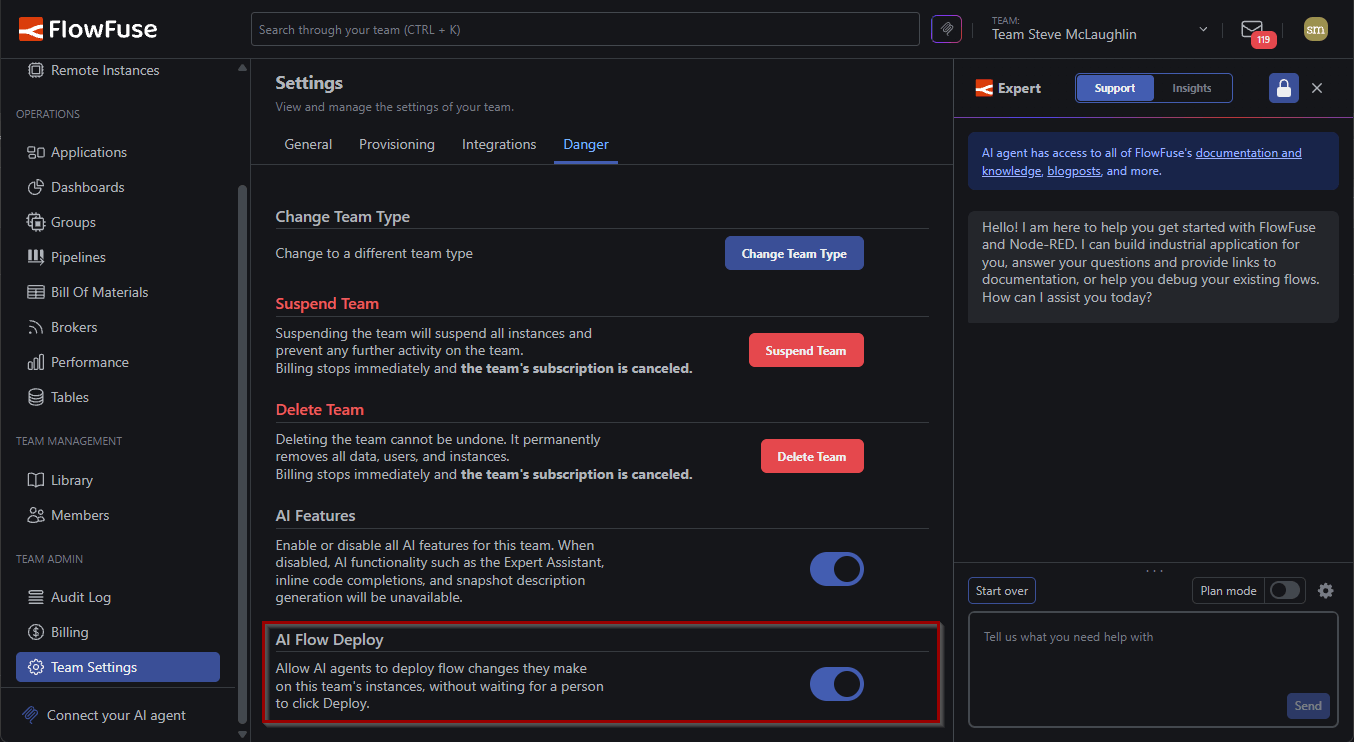 Enabling AI Flow Deploy in Team Settings.
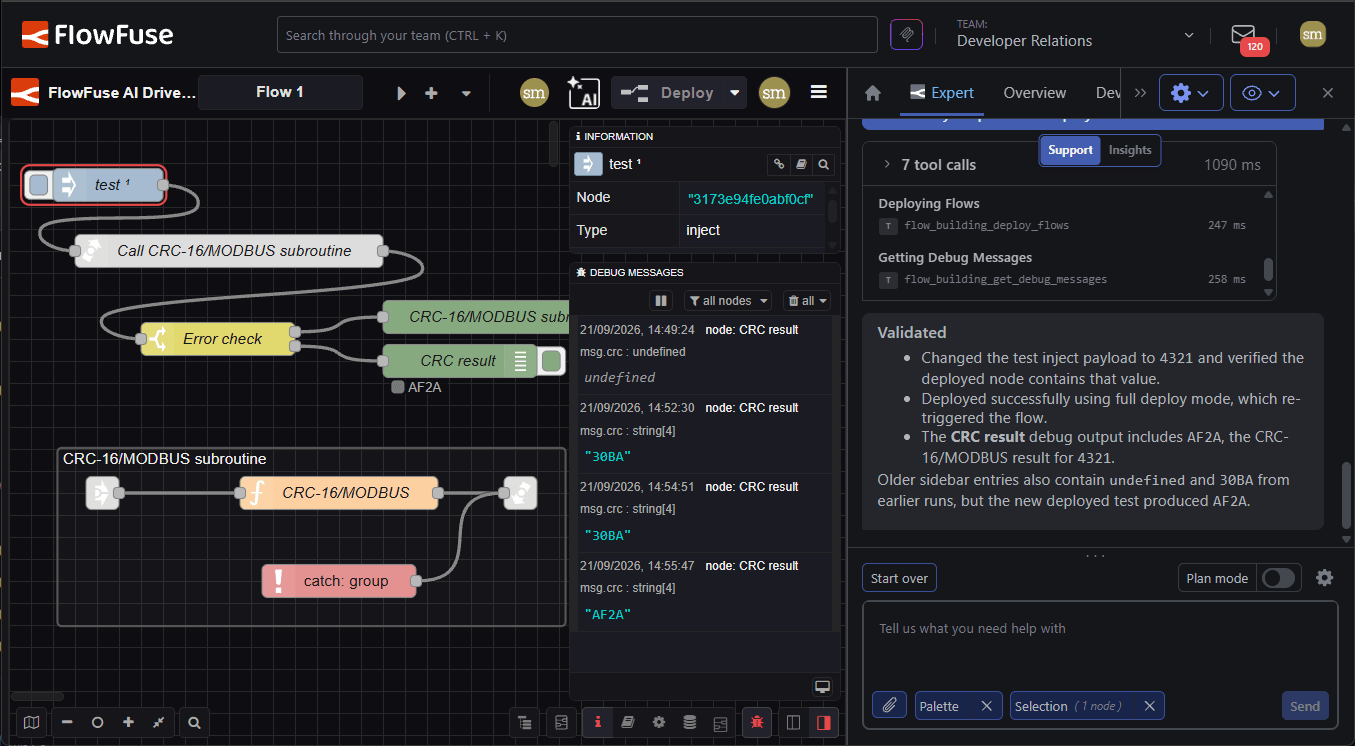 FlowFuse Expert fixed, deployed and verified output.
This feature is available to all FlowFuse teams on FlowFuse Cloud now and Self Hosted from FlowFuse v3.1. FlowFuse is fully integrated with AI Agents. See what agents can do and how to connect your own agent.
Written By:
Published on:
Related GitHub Issues
Recent Updates:
- Kubernetes Stack Memory and CPU allocations
- Introducing Remote Agent Plugin
- AI Improvements in FlowFuse
- Vue and Vuetify Editing for Templates
- Expert on Your Team Overview