node-red-contrib-postgresql
Node-RED node for PostgreSQL, supporting parameters, split, back-pressure
FlowFuse Recommended Node
FlowFuse recommends this node as a well-maintained, dependable choice for production Node-RED projects.
node-red-contrib-postgresql
node-red-contrib-postgresql is a Node-RED node to query a PostgreSQL 🐘 database.
It supports splitting the resultset and backpressure (flow control), to allow working with large datasets.
It supports parameterized queries and multiple queries.
Configuration
Connection credentials
The PostgreSQL user and password are stored as
Node-RED credentials,
which means they are encrypted at rest in flows_cred.json and never appear in plain text in flows.json.
Environment variables and global context
Instead of entering credentials directly, you can source the user or password from a Node-RED environment variable or a global context variable. Use the dropdown next to each field in the Security tab to choose the source:
| Source | What to enter | Resolves to |
|---|---|---|
| credential (default) | the value itself | stored encrypted in flows_cred.json |
| env variable | the variable name, e.g. PG_USER |
resolved at deploy from OS environment variables |
| global | the global context key | read from global.get(key) at deploy |
All other connection fields (host, port, database, SSL, etc.) continue to support
the same str / env / global typed-input options as before.
Upgrading from versions before 0.16.0
Earlier versions stored user and password as plain text in flows.json.
On first start after upgrading, the node automatically copies those values into encrypted credentials
and logs a warning. To finish the migration and remove the plain-text values from flows.json,
open the config node, click Done, then Deploy. The warning will keep appearing on every restart until you do so.
No manual editing of flows.json is required.
Security notes
After migration, credentials take priority over any values injected into flows.json.
The plain-text fallback in flows.json is only used if credentials are empty
(e.g. on first migration, or if flows_cred.json is deleted).
Outputs
The response (rows) is provided in msg.payload as an array.
An exception is if the Split results option is enabled and the Number of rows per message is set to 1,
then msg.payload is not an array but the single-row response.
Additional information is provided as msg.pgsql.rowCount and msg.pgsql.command.
See the underlying documentation for details.
In the case of multiple queries, then msg.pgsql is an array.
Inputs
SQL query template
This node uses the Mustache template system to generate queries based on the message:
-- INTEGER id column
SELECT * FROM table WHERE id = {{{ msg.id }}};

-- TEXT id column
SELECT * FROM table WHERE id = '{{{ msg.id }}}';
Dynamic SQL queries
As an alternative to using the query template above, this node also accepts an SQL query via the msg.query parameter.
Parameterized query (numeric)
Parameters for parameterized queries can be passed as a parameter array msg.params:
// In a function, provide parameters for the parameterized query
msg.params = [ msg.id ];
-- In this node, use a parameterized query
SELECT * FROM table WHERE id = $1;
Named parameterized query
As an alternative to numeric parameters,
named parameters for parameterized queries can be passed as a parameter object msg.queryParameters:
// In a function, provide parameters for the named parameterized query
msg.queryParameters.id = msg.id;
-- In this node, use a named parameterized query
SELECT * FROM table WHERE id = $id;
Note: named parameters are not natively supported by PostgreSQL, and this library just emulates them, so this is less robust than numeric parameters.
Dynamic PostgreSQL connection parameters
If the information about which database server to connect and how needs to be dynamic, it is possible to pass a custom client configuration in the message:
msg.pgConfig = {
  user?: string, // default process.env.PGUSER || process.env.USER
  password?: string, //or function, default process.env.PGPASSWORD
  host?: string, // default process.env.PGHOST
  database?: string, // default process.env.PGDATABASE || process.env.USER
  port?: number, // default process.env.PGPORT
  connectionString?: string, // e.g. postgres://user:password@host:5432/database
  ssl?: any, // passed directly to node.TLSSocket, supports all tls.connect options
  types?: any, // custom type parsers
  statement_timeout?: number, // number of milliseconds before a statement in query will time out, default is no timeout
  query_timeout?: number, // number of milliseconds before a query call will timeout, default is no timeout
  application_name?: string, // The name of the application that created this Client instance
  connectionTimeoutMillis?: number, // number of milliseconds to wait for connection, default is no timeout
  idle_in_transaction_session_timeout?: number, // number of milliseconds before terminating any session with an open idle transaction, default is no timeout
};
However, this does not use a connection pool, and is therefore less efficient.
It is therefore recommended in most cases not to use msg.pgConfig at all and instead stick to the built-in configuration node.
Installation
Using the Node-RED Editor
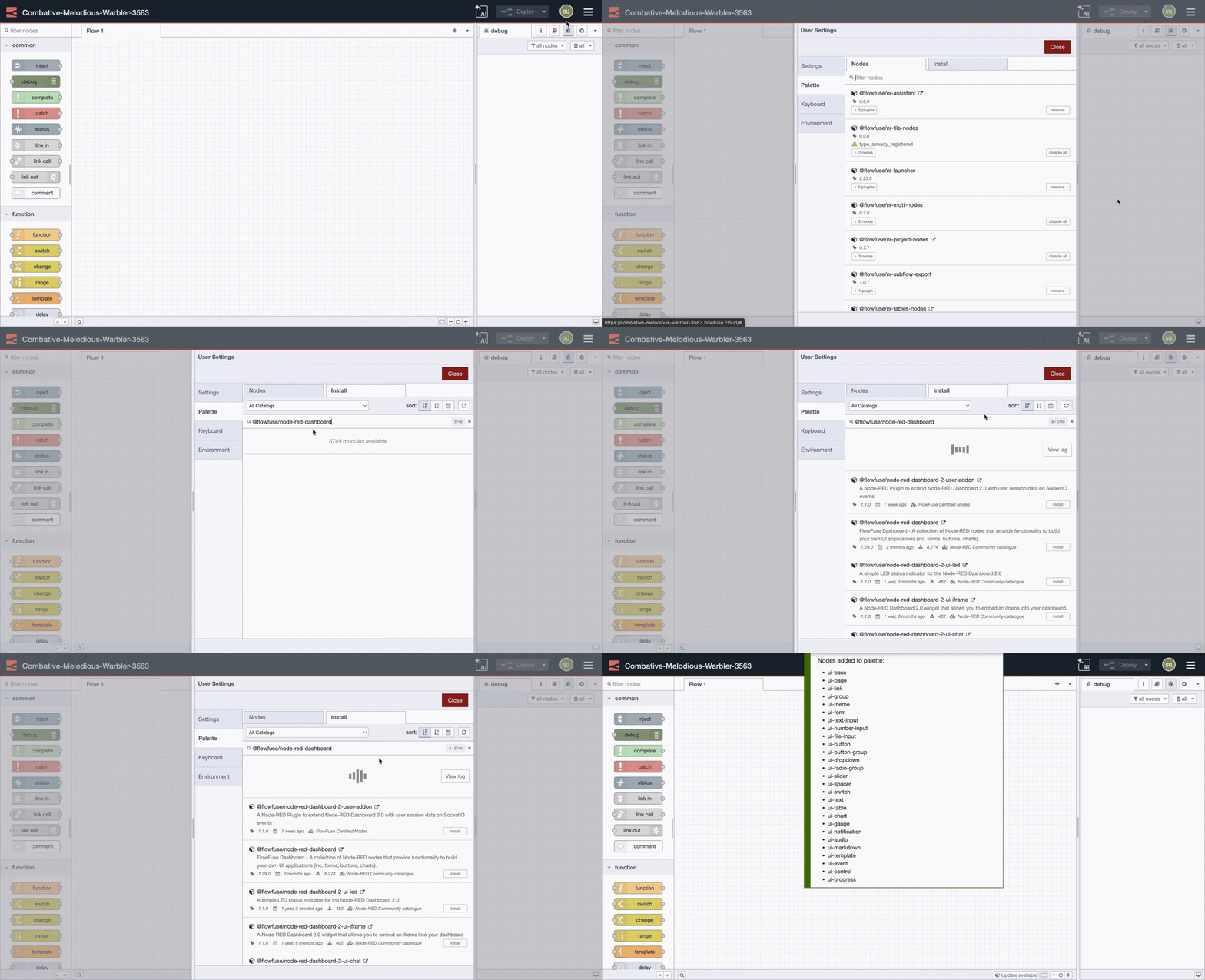
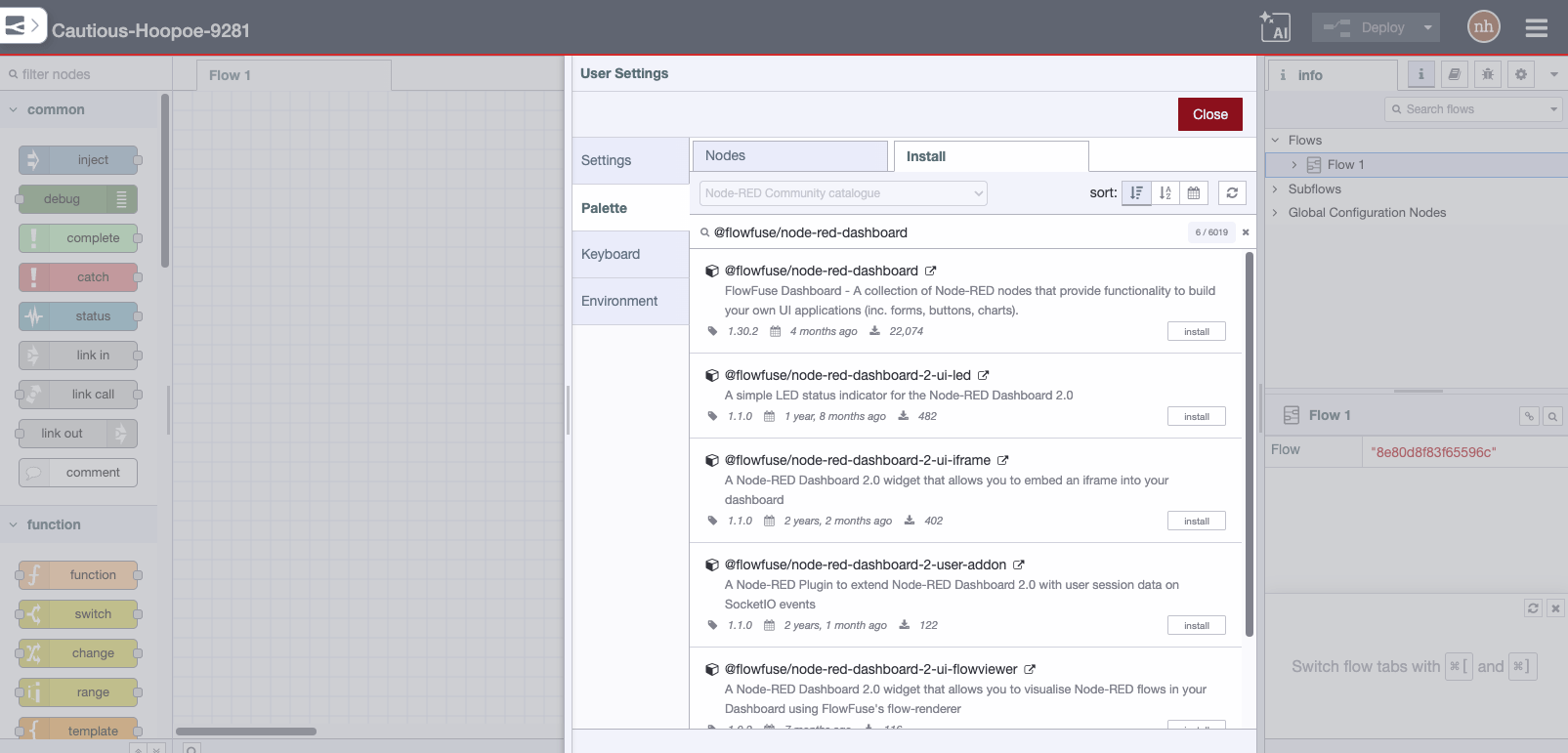
You can install node-red-contrib-postgresql directly using the editor: Select Manage Palette from the menu (top right), and then select the Install tab in the palette.
Using npm
You can alternatively install the npm-packaged node:
- Locally within your user data directory (by default,
$HOME/.node-red):
cd $HOME/.node-red
npm i node-red-contrib-postgresql
- or globally alongside Node-RED:
npm i -g node-red-contrib-postgresql
You will then need to restart Node-RED.
Backpressure
This node supports backpressure / flow control: when the Split results option is enabled, it waits for a tick before releasing the next batch of lines, to make sure the rest of your Node-RED flow is ready to process more data (instead of risking an out-of-memory condition), and also conveys this information upstream.
So when the Split results option is enabled, this node will only output one message at first,
and then awaits a message containing a truthy msg.tick before releasing the next message.
To make this behaviour potentially automatic (avoiding manual wires), this node declares its ability by exposing a truthy node.tickConsumer
for downstream nodes to detect this feature, and a truthy node.tickProvider for upstream nodes.
Likewise, this node detects upstream nodes using the same back-pressure convention, and automatically sends ticks.
Example of flow
Example adding a new column in a table, then streaming (split) many lines from that table, batch-updating several lines at a time, then getting a sample consisting of a few lines:
Example: flow.json
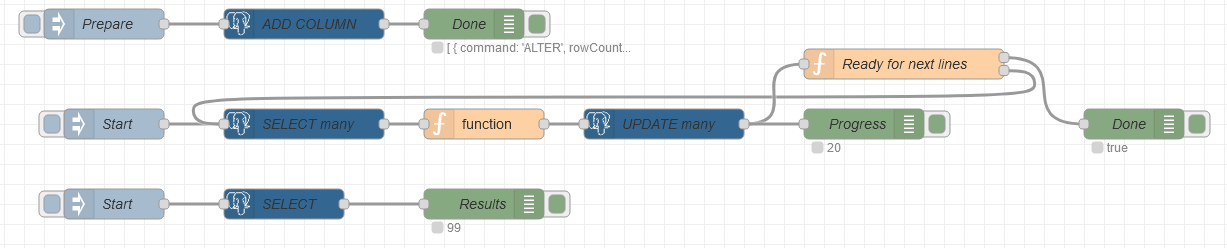
The debug nodes illustrate some relevant information to look at.
Sequences for split results
When the Split results option is enabled (streaming), the messages contain some information following the conventions for messages sequences.
{
  payload: '...',
  parts: {
    id: 0.1234, // sequence ID, randomly generated (changes for every sequence)
    index: 5, // incremented for each message of the same sequence
    count: 6, // total number of messages; only available in the last message of a sequence
    parts: {}, // optional upstream parts information
  },
  complete: true, // True only for the last message of a sequence
}
Testing
The repository includes a self-contained Docker Compose integration environment using the latest Node-RED and PostgreSQL images by default.
Requirements: cURL, Docker, Docker Compose.
Headless integration testing
npm run test:integration
The host-side test script waits for Node-RED, calls the flow's HTTP endpoint, prints its JSON summary, and returns a non-zero exit code for startup errors, timeouts, database errors, or failed assertions.
Specific image versions are supported:
NODE_RED_IMAGE=nodered/node-red:latest POSTGRES_IMAGE=postgres:latest npm run test:integration
For a quick check that database failures propagate to the command-line exit code:
TEST_PGPASSWORD=incorrect npm run test:integration
Manual testing in the Web editor
Start PostgreSQL and Node-RED:
npm run compose:up
Open http://localhost:1880, and click the Run integration test Inject node. The Integration test result Debug node reports the result. The flow tests SQL query templates, dynamic queries, numeric and named parameters, split results, and backpressure ticks.
To inspect the runtime logs or remove the environment:
docker compose -f test/compose/compose.yaml logs --follow node-red
npm run compose:down
The module is mounted read-only, while editor deployments are persisted directly to the committed integration flow. After changing module files, restart Node-RED:
docker compose -f test/compose/compose.yaml restart node-red
Credits
Major rewrite in July 2021 by Alexandre Alapetite (Alexandra Institute), of parents forks: andreabat / ymedlop / HySoaKa, with inspiration from node-red-contrib-re-postgres (code).
This node builds uppon the node-postgres (pg) library.
Contributions and collaboration welcome.