How to Connect to Beckhoff TwinCAT PLC Using ADS (2026)
Read and write TwinCAT PLC variables from FlowFuse using the ADS protocol, no additional licensing required.


ADS is the protocol TwinCAT uses internally, between its own runtime, its HMI, and its PLC and NC tasks, and Beckhoff exposes it for external tools too. That means connecting to a TwinCAT PLC over ADS gives you direct read and write access to its variables, no additional licensing or middleware required, over the same channel TwinCAT already relies on.
The challenge is usually not the tooling. It is the routing layer. AMS Net IDs, route tables, firewall rules. Get any of those wrong and ADS fails without telling you why. This guide covers the routing first, before touching a single FlowFuse node, because that is where most people get stuck.
By the end you will have live TwinCAT variables flowing into FlowFuse.
Prerequisites
Before you begin, make sure you have the following in place:
- TwinCAT 3.1 runtime running on a Beckhoff IPC
- FlowFuse running on an edge device with network access to the TwinCAT machine. If you don't have an account yet, sign up to get started, then follow this guide to quickly run a FlowFuse instance on your edge device.
- Both devices on the same network
- Port 48898 open between the two devices
- Symbol creation enabled on PlcTask so variables are accessible by name over ADS
- PLC logged in and deployed on port 851
- PLC in Run mode, the TwinCAT system tray icon must be green
- Symbol paths of the variables you want to read or write, available from whoever wrote the PLC program
If you don't have a real PLC available and want to follow along with a test setup, see Setting Up a Test PLC at the end of this guide before continuing.
What is ADS and Why It Matters
Every TwinCAT device has an AMS Net ID. It looks like an IP address with two extra octets: 10.68.82.232.1.1. The first four typically match the device IP, the last two are almost always 1.1 by convention. This is how the ADS router identifies devices on the network, and it is what you will configure in every connection you make from FlowFuse.
Within a device, different TwinCAT components are reachable on different ADS ports. The PLC runtime listens on port 851 by default. If your machine runs multiple PLC tasks, each task gets its own port: the first task is 851, the second is 852, and so on. Check with the controls engineer which port corresponds to the task containing your variables.

Configuring ADS Routes
TwinCAT will not accept an ADS connection from an unknown host. Every external device that needs to connect must be explicitly trusted in TwinCAT's route table. This is stored in a file called StaticRoutes.xml on the TwinCAT machine.
TwinCAT provides a route manager in the system tray under Router > Edit Routes. However it does not expose the Flags setting, which defaults to 64 and will silently block connections from non-Windows devices such as Linux or Mac based edge devices. Editing StaticRoutes.xml directly is the only way to set Flags to 0, which allows connections from any trusted device on your network.
Before adding the route you need two pieces of information:
- The IP address of your FlowFuse edge device
- The AMS Net ID you will assign to it, which is the IP address with
.1.1appended
For example if your FlowFuse device IP is 10.68.82.101, its AMS Net ID is 10.68.82.101.1.1.
Important: Your FlowFuse edge device must be on the same network as the interface TwinCAT's AMS Net ID is bound to. TwinCAT binds its AMS Net ID to a specific network interface on startup. If your machine has multiple network interfaces, confirm which IP the AMS Net ID uses, you can find it by right clicking the TwinCAT tray icon and selecting About TwinCAT System. Your FlowFuse device must be reachable on that same network, otherwise the ADS handshake will fail even if port 48898 is open.
Edit StaticRoutes.xml:
If you do not have direct access to the TwinCAT machine, ask the controls engineer or machine builder to make this change. Share this section with them so they know exactly what needs to be set, particularly the
Flagsvalue of0.
Warning: The PowerShell command below overwrites the entire
StaticRoutes.xmlfile. If the TwinCAT machine already has existing routes configured, back up the file before running this command or add your route entry manually inside the existing<RemoteConnections>block instead.
- On the TwinCAT machine open PowerShell as administrator
- Run the following command, replacing
YOUR_EDGE_DEVICE_IPwith the actual IP of your FlowFuse device:
$xml = @"
<?xml version="1.0"?>
<TcConfig xmlns:xsi="http://www.w3.org/2001/XMLSchema-instance">
  <RemoteConnections>
    <Route>
      <Name>flowfuse-edge</Name>
      <Address>YOUR_EDGE_DEVICE_IP</Address>
      <NetId>YOUR_EDGE_DEVICE_IP.1.1</NetId>
      <Type>TCP_IP</Type>
      <Flags>0</Flags>
    </Route>
  </RemoteConnections>
</TcConfig>
"@
$xml | Set-Content "C:\Program Files (x86)\Beckhoff\TwinCAT\3.1\Target\StaticRoutes.xml"
Note: In this example, TwinCAT 3.1 is installed. If you are using a different version, replace 3.1 with the version installed on your system. The installation path may also vary depending on your TwinCAT setup.
- Restart the TwinCAT router from the system tray by right clicking the TwinCAT icon and selecting Router > Restart.
- Open the Windows Firewall and confirm that port 48898 is allowed for inbound TCP connections.
After the router restarts, verify that port 48898 is reachable from your FlowFuse edge device by running nc -zv <twincat-ip> 48898. If the connection is refused, confirm the firewall rule was saved and that both devices are on the same subnet.
Installing node-red-contrib-ads-client in FlowFuse
- In your FlowFuse instance open the Node-RED editor
- Click the hamburger menu in the top right and select Manage Palette
- Go to the Install tab
- Search for
node-red-contrib-ads-client - Click Install and wait for it to complete
- Click Close
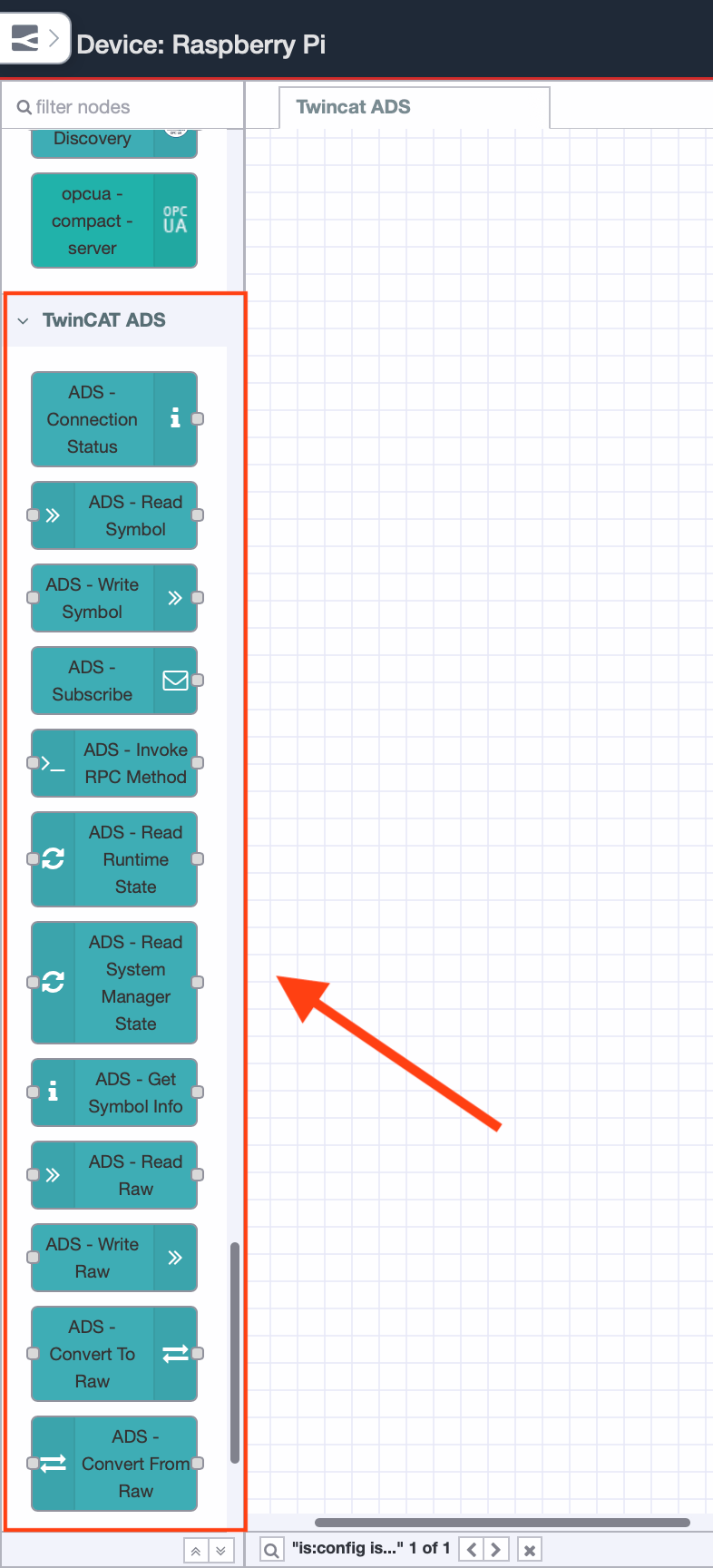
Once the installation is complete, a few nodes will appear in the right-hand palette under the TwinCAT ADS category.
Connecting to TwinCAT
Add the connection node:
- In Node-RED drag an ADS – Connection Status node onto the canvas
- Double click it to open the configuration
- Next to the Connection field click + to create a new connection
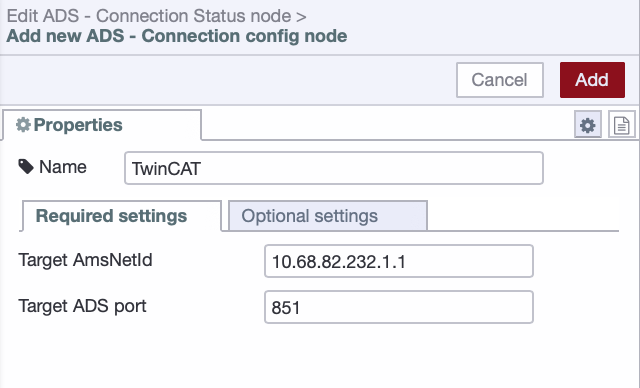
- In the Required Settings tab fill in the Target AMS Net ID and Target ADS Port:
| Field | Value |
|---|---|
| Target AMS Net ID | AMS Net ID of your TwinCAT machine, e.g. 10.68.82.232.1.1 |
| Target ADS Port | 851 |
- Switch to the Optional Settings tab and fill in the network settings:
| Field | Value |
|---|---|
| Router Address | IP address of your TwinCAT machine, e.g. 10.68.82.232 |
| Router TCP Port | 48898 |
| Local AMS Net ID | AMS Net ID of your FlowFuse edge device, e.g. 10.68.82.101.1.1 |
| Local ADS Port | 32750 |
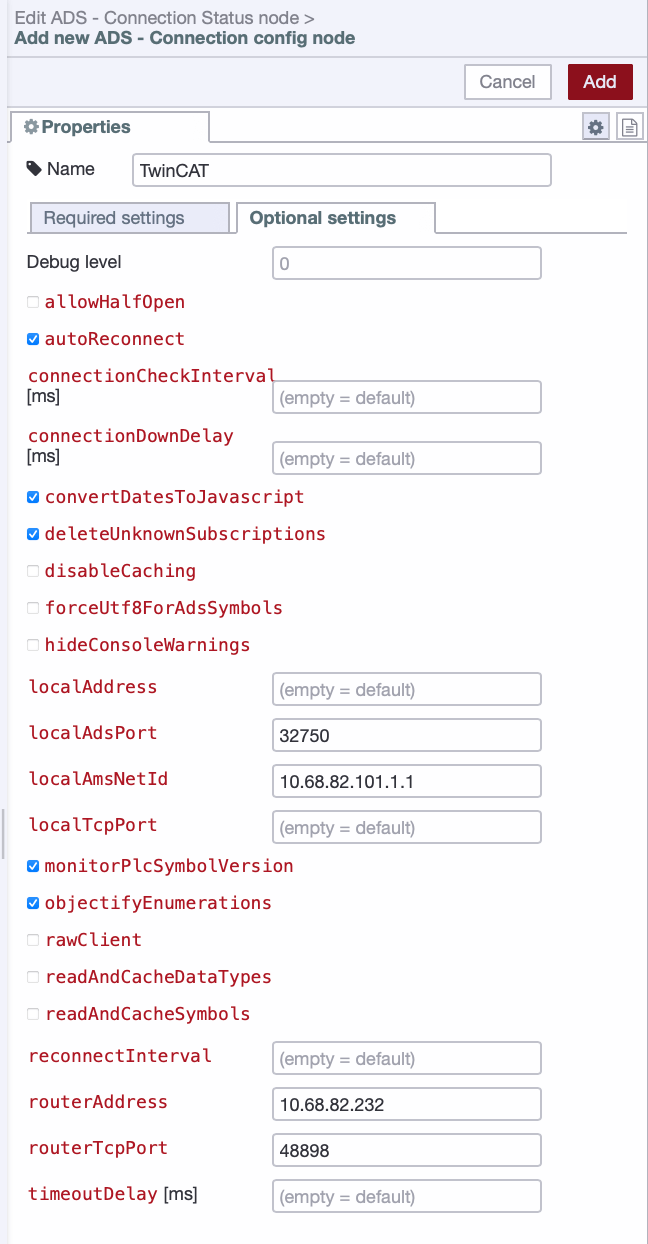
The Local AMS Net ID must match the route configured in StaticRoutes.xml. Local ADS Port normally does not need to be changed.
Note: If your TwinCAT system is in config mode or the PLC runtime takes time to initialize on startup, enable Allow Half Open in the connection settings. Without it the client performs a strict system state check on connect and will fail with ADS error 7 even if the router is reachable. With it enabled the client connects regardless and waits for the runtime to become ready.
- Click Add to save the connection configuration
- Click Done
- Click Deploy
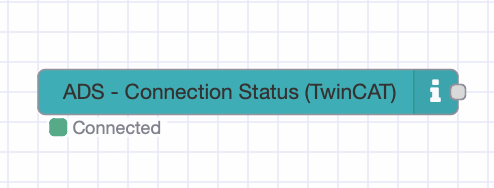
Within a few seconds the connection status node should show connected, indicating that FlowFuse successfully established an ADS session with the TwinCAT runtime.
Reading PLC Variables
With the connection working, reading a variable takes three nodes: an inject node to trigger the read, a read value node to fetch the value, and a debug node to see the output.
- Drag an inject node onto the canvas
- Double click it and leave the default settings so it triggers manually
- Click Done
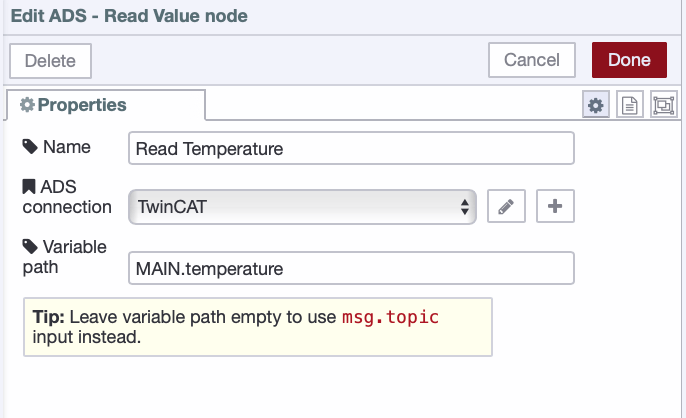
- Drag an ADS - Read Value node onto the canvas
- Double click it to configure
- Select your TwinCAT connection from the Connection dropdown
- Set the Variable name to the full symbol path of the variable you want to read. Symbol paths are always in the format
ProgramName.VariableName. If you are following along with the test PLC, useMAIN.temperature. If you are connecting to a real PLC, use the symbol paths provided by the controls engineer.
- Click Done
- Drag a debug node onto the canvas
- Connect the inject node output to the read value node input
- Connect the read value node output to the debug node input
- Click Deploy
Click the inject button. You should see the variable value appear in the debug panel.
Subscribing to Variable Changes
Polling on a fixed timer works but is inefficient. For live data the better approach is to subscribe to variable changes. TwinCAT sends a new value to FlowFuse only when the value actually changes, which reduces unnecessary network traffic and gives you lower latency updates.
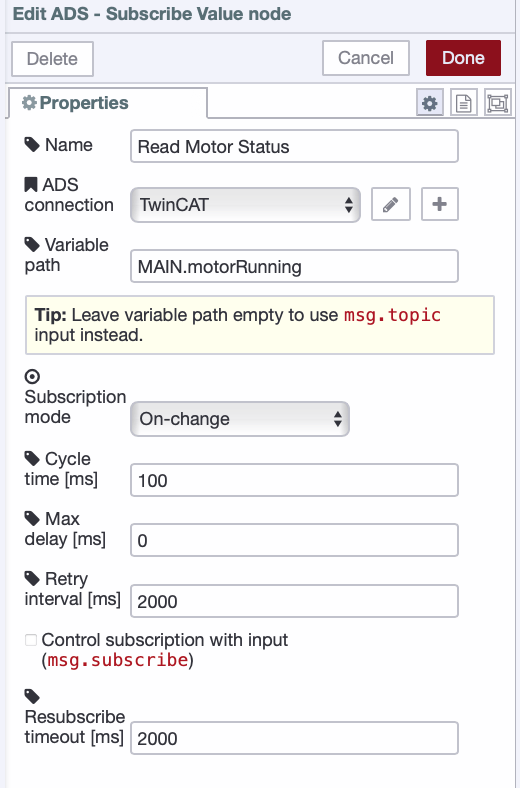
- Drag an ADS - Subscribe Value node onto the canvas
- Double click it to configure
- Select your TwinCAT connection from the Connection dropdown
- Set the Variable name to the full symbol path of the variable you want to monitor. If you are following along with the test PLC, use
MAIN.motorRunning, it toggles roughly once per second so you will see true and false values arriving in the debug panel without being overwhelmed. - Set the Subscription mode to On Change. This tells the TwinCAT runtime to notify FlowFuse only when the variable value has actually changed, rather than pushing the value on every cycle regardless of whether it changed. If you need a value delivered at a fixed interval even when unchanged, use Cyclic instead.
- Set the Cycle time to
100milliseconds. This is how frequently TwinCAT checks for changes on its side.
- Click Done
- Connect its output to a debug node
- Click Deploy
The debug node will now receive a message every time the variable value changes in the PLC, with no polling required from FlowFuse.
Writing to PLC Variables
Writing back to the PLC closes the loop. This is useful for sending setpoints, commands, or reset signals from FlowFuse back to TwinCAT.
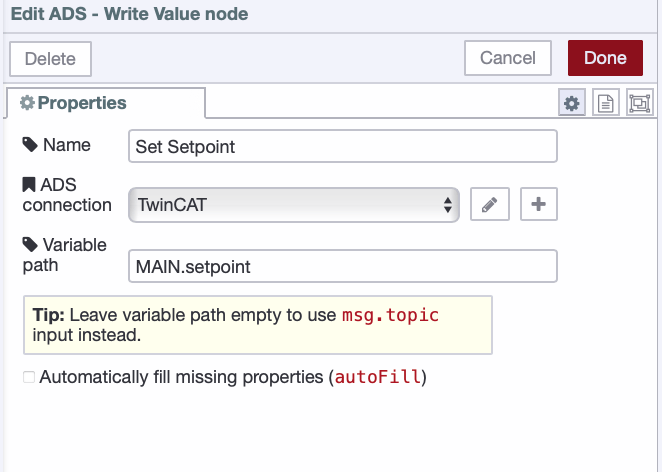
- Drag an ADS - Write Value node onto the canvas
- Double click it to configure
- Select your TwinCAT connection
- Set the Variable name to the full symbol path of the variable you want to write to. If you are following along with the test PLC, use
MAIN.setpoint. - Leave Automatically fill missing properties (autoFill) unchecked. This setting only applies when writing complex types such as structs or function blocks, it reads the current value from the PLC first and merges your changes on top so unspecified fields are not zeroed out. For a simple variable like
MAIN.setpointit has no effect.
- Click Done
- Drag an inject node onto the canvas
- Double click it and set the payload type to match the type of your PLC variable. The payload type must match what the PLC expects, a Number for INT or REAL, a boolean for BOOL, a string for STRING, and so on. If you are following along with the test PLC,
setpointis declared as INT so set the payload type to Number. - Click Done
- Connect the inject node output to the write node input
- Click Deploy
- Click the inject button to trigger the write
To verify the write worked, add a read value node for the same variable and check that the value updated in the debug panel.
Troubleshooting
- Connection fails silently with no error
The FlowFuse device IP is not in
StaticRoutes.xmlorFlagsis set to64instead of0. Edit the file using the PowerShell command in the routing section, then restart the TwinCAT router. - ADS error 7: Target machine not found
The most common cause is that your FlowFuse device and the TwinCAT machine are not on the same network as the interface TwinCAT's AMS Net ID is bound to. Check the AMS Net ID in About TwinCAT System on the TwinCAT machine and confirm your FlowFuse device has an IP on that same subnet. Also confirm the FlowFuse device IP is in
StaticRoutes.xmlwithFlagsset to0, and that the router was restarted after any changes. If the PLC runtime takes time to initialize on startup, enable Allow Half Open in the connection node. - Error: Connection to 127.0.0.1:48898 failed The Router Address field in the connection node is empty or incorrect. Open the connection node, set the Router Address to the TwinCAT machine IP, and redeploy.
- Error 1808: Symbol not found
The variable name is wrong or does not exist in the PLC program. Double check the full symbol path including the program name prefix, for example
MAIN.temperature. If you are using the test PLC, make sure symbol creation is enabled in PlcTask and the PLC is in Run mode. - Error 1804: Failed to get fingerprint
The FlowFuse device IP is missing from
StaticRoutes.xmlor the TwinCAT router was not restarted after editing the file. - Port 48898 not reachable
Port 48898 is blocked on the TwinCAT machine firewall or the two devices are not on the same network. Confirm the firewall rule is in place and test reachability with
nc -zv <twincat-ip> 48898from your FlowFuse device. - PLC variables not updating The PLC is not in Run mode. The TwinCAT system tray icon must be green. A blue icon means the runtime is stopped, right click the tray icon and select Restart TwinCAT (Run Mode).
Setting Up a Test PLC
For readers without a real TwinCAT PLC available: this sets up a minimal test environment to follow along with. Skip this section if you already have a PLC running.
What You Need
- A Windows machine or laptop
- TwinCAT XAE Shell installed. Download it from the Beckhoff website
Important: If your Windows machine has Hyper-V enabled, TwinCAT will not run in KM mode and the system tray icon will stay blue instead of turning green. Make sure Hyper-V is disabled before proceeding. You may need to restart the machine after disabling it.
Create the Project
- Open TwinCAT XAE Shell
- Click File > New > Project
- Select TwinCAT Projects then TwinCAT XAE Project
- Give the project a name, for example
AdsDemo, and click OK
Add a PLC Project
- In Solution Explorer right click the project name and select Add New Item
- Select Standard PLC Project, give it a name, and click Add
Write the PLC Program
- In Solution Explorer expand PLC > your project > POUs and double click MAIN
- In the declaration section (top panel) replace the existing content with:
PROGRAM MAIN
VAR
    temperature : REAL := 23.5;
    motorRunning : BOOL := FALSE;
    setpoint : INT := 100;
    cycleCount : INT := 0;
END_VAR
- In the program body (bottom panel) add:
temperature := temperature + 0.1;
IF temperature > 100.0 THEN
    temperature := 0.0;
END_IF

cycleCount := cycleCount + 1;
IF cycleCount >= 1000 THEN
    motorRunning := NOT motorRunning;
    cycleCount := 0;
END_IF
This gives you three live variables to work with. temperature increments continuously every PLC cycle, motorRunning toggles roughly once per second, and setpoint stays static until you write to it from FlowFuse.
Enable Symbol Creation
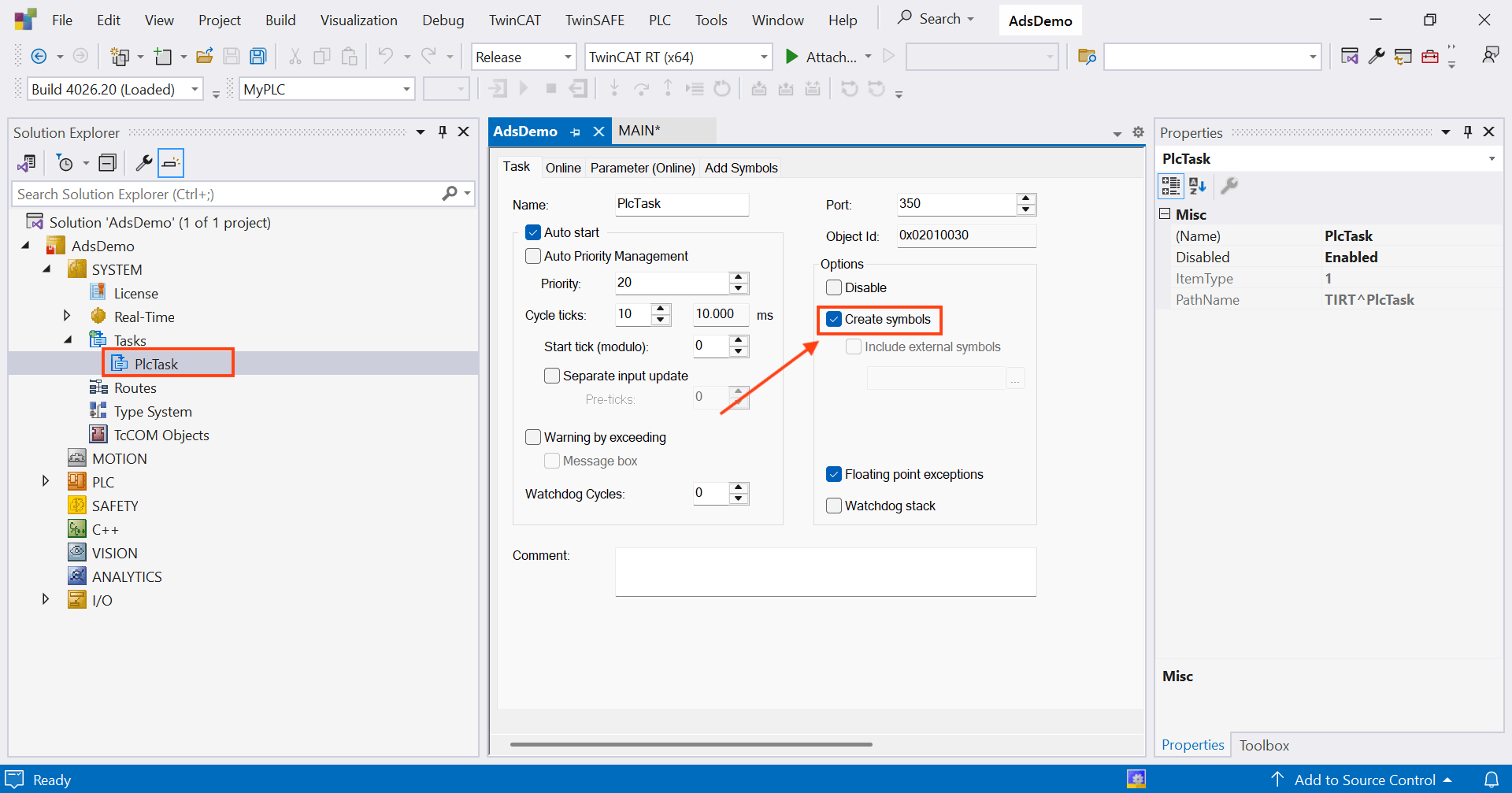
Symbol creation must be enabled for ADS to access variables by name. Without this step the ADS client will connect successfully but fail to find any variables.
- In Solution Explorer expand the project, then under Task double click PlcTask
- Check Create symbols in the properties window that opens
- Click OK
Build and Activate
- Press Ctrl+Shift+B to build the project. Check the output window for any errors before continuing.
- Right click the PLC instance in Solution Explorer and select Login
Note: If Login is not visible in the right click menu, find it in the top menu bar under PLC > Login.
- When TwinCAT prompts you to create the application on port 851, click Yes. Do not skip this step or change the port.
- Press F5 to start the PLC
The TwinCAT system tray icon must be green before you proceed. A blue icon means the runtime is not running and ADS connections will fail.
Your test PLC is now running. Go back to the Configuring ADS Routes section and continue from there. The variable paths you will use throughout this guide are MAIN.temperature, MAIN.motorRunning, and MAIN.setpoint.
Conclusion
You now have a working ADS connection between FlowFuse and TwinCAT: reading variables on demand, subscribing to live changes, and writing values back to the PLC. The node-red-contrib-ads-client package includes several other nodes worth exploring on your own.
From here, build real-time dashboards on live PLC data, connect TwinCAT to databases, ERP, or cloud platforms, set up alerts when variables go out of range, and give your team operator interfaces they can reach from anywhere, all on the connection you just configured, without custom integration code.
Beckhoff TwinCAT ADS is one of many PLCs FlowFuse connects to the modern industrial stack. For Siemens, Allen-Bradley, Omron, Modbus, OPC UA, and more, see the FlowFuse PLC integration overview.
Connect TwinCAT to the Rest of Your Stack
FlowFuse makes it simple to take live PLC data further, dashboards, databases, ERP, cloud platforms, and alerts, all without custom integration code.
Frequently Asked Questions
About the Author
Sumit Shinde
Technical Writer
Sumit Shinde is a Technical Writer at FlowFuse specializing in industrial automation and manufacturing. In the past three years, he has built industrial applications and authored more than 100 technical articles covering industrial connectivity, unified data architecture, production metrics, and quality management for modern manufacturing.
Like what you're reading?
Add FlowFuse as a preferred sourceOn the page that opens, check the box next to flowfuse.com to see more of our articles in your Google Search results.
Related Articles:
- What Is a PLC (Programmable Logic Controller)? What It Does, How It Works, and Where It's Used
- How to Access Optimized Data Blocks in TIA Portal (S7-1200/1500)
- Store-and-Forward at the Edge: Buffering Production Data During Network Outages
- Building a Web HMI for Factory Equipment Control
- How to Connect Any PLC to MQTT in Under an Hour